Options
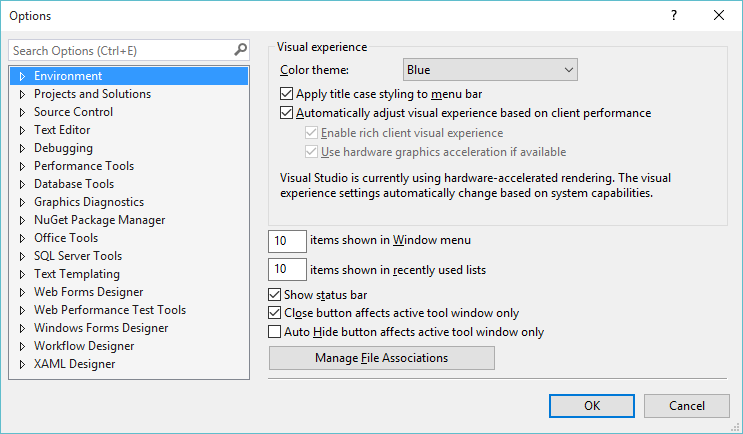 |
Options - Environment
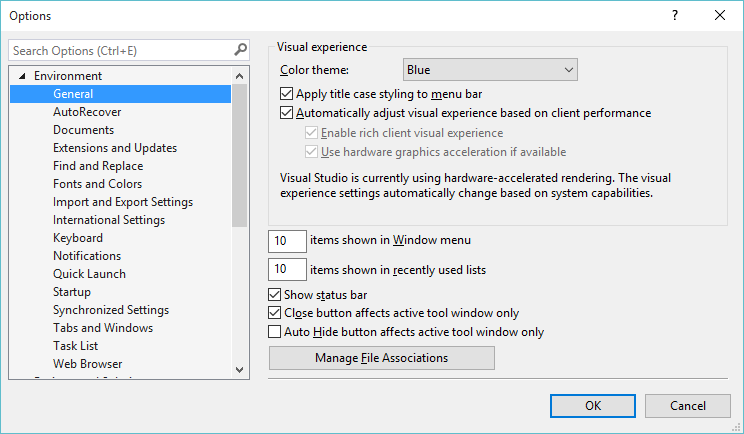 |
General
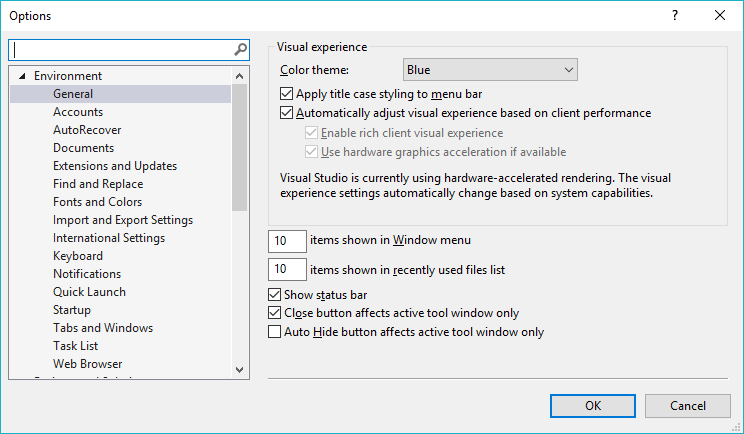 |
Tabbed documents - (Express Only) Display document windows that are tabbed together within editors.
Multiple documents - (Express Only) Open documents in a multiple document interface (MDI)
Items shown in window menu - The number of windows that appear in the Windows list. Number between 1 and 24. Default is 10.
Items shown in recently used lists - The number of most recently used projects and files on the File menu. Number between 1 and 24. Default is 6.
Color theme - (Added in 2012)
Automatically adjust visual experience based on client performance -
Enable rich client visual experience - (Added in 2010)
Use hardware graphics acceleration if available - (Added in 2010)
Show status bar - Displays the status bar.
Close button affects active tool window only - Specifies that when the Close button is clicked only the
Auto hide button affects active tool window only - Specifies that when the Auto Hide button is clicked only the active window with focus is closed.
Animate environment tools - (Express Only)
Speed - (Express Only)
Restore file associations - Registers all the file types that are normally associated with Visual Studio.
Manage file associations - (Added in 2012)
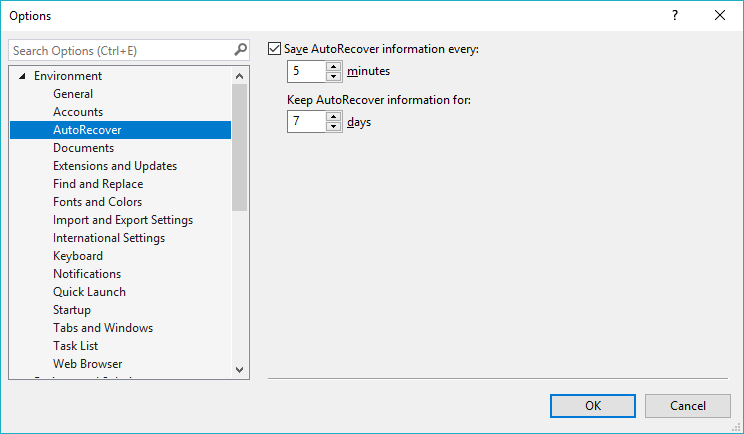
AutoRecover
 |
Documents
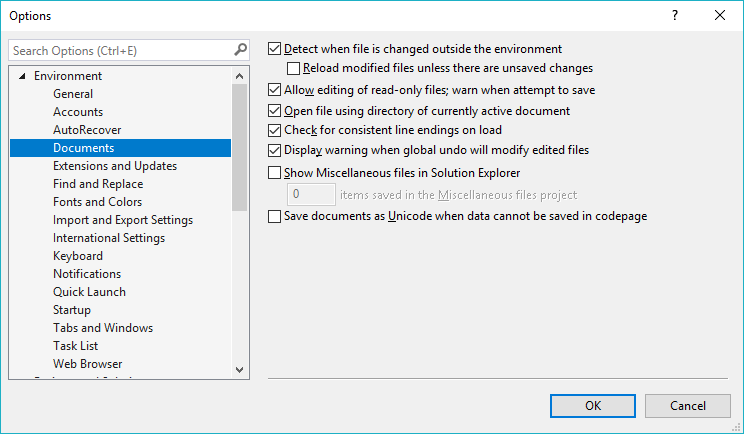 |
Reuse current document window, if saved -
Detect when file is changed outside the environment - Displays a message to notify you of any external changes made to an open file.
Auto load changes, if saved -
Allow editing of read-only files, warn when attempt to save - Allows you to open and edit read-only files.
Open file using directory of currently active documents -
Check for consistent line endings on load -
Display warning when global undo will modify edited files -
Show miscellaneous files in solution explorer -
Items saved in the miscellaneous files project - The number of files to persist in the miscellaneous files and folder of Solution Explorer.
Save documents as Unicode when data cannot be saved in code page -
Insert documents to the right of existing tabs - (Added in 2010)
Extensions and Updates
 |
Find And Replace
 |
Fonts and Colors
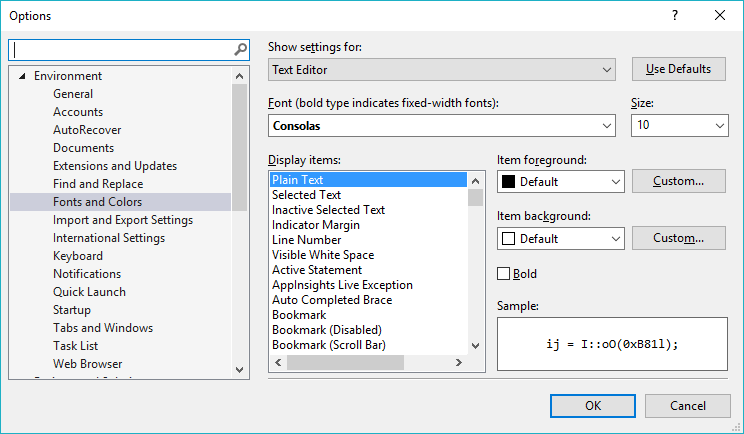 |
Show settings for - Lists all the different interface elements where you can change the font and colour scheme.
Use defaults - Resets the font and colour scheme for the element selected in the "show settings for" drop-down
Font - The default font in 2010 is Consolas 10. The default font in 2008 is Courier New 10.
Size -
Display Items - Lists all the different items where you can change the foreground and background colour.
Item foreground -
Custom -
Item background -
Custom - Displays the Color dialog box allowing you to choose a custom colour.
Bold -
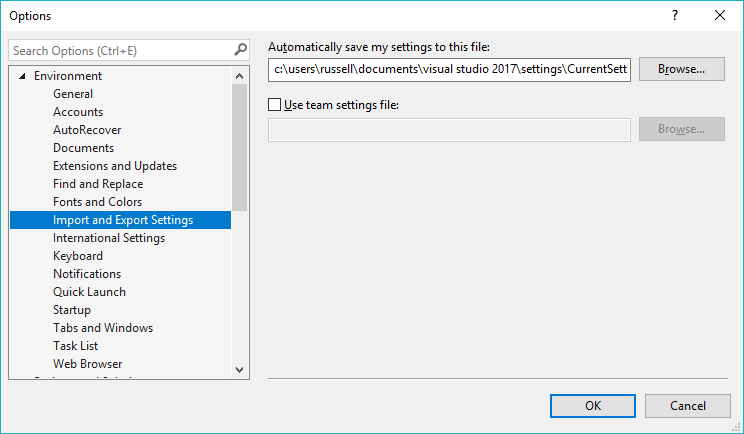
Import and Export Settings
 |
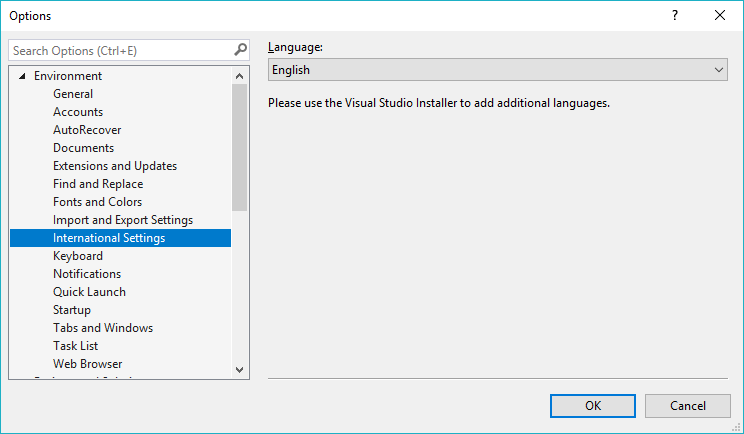
International Settings
 |
Keyboard
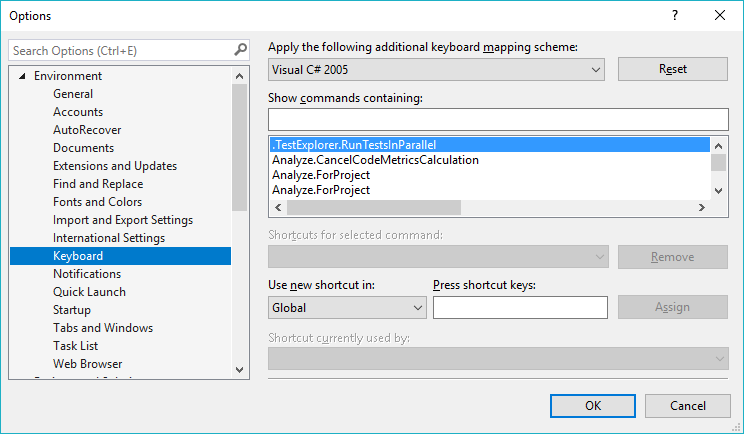 |
Additional mapping scheme -
Reset -
Show commands containing -
Shortcuts for selected commands -
Remove -
Use new shortcut in -
Press shortcut keys -
Assign -
Shortcut currently used by -
Notifications
na
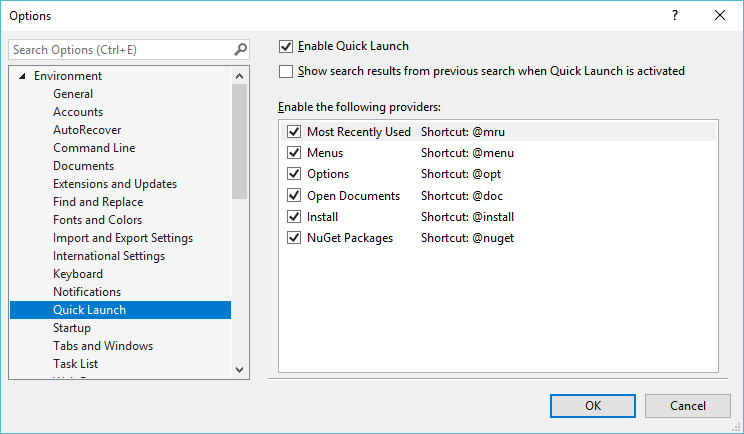
Quick Launch
 |
Startup
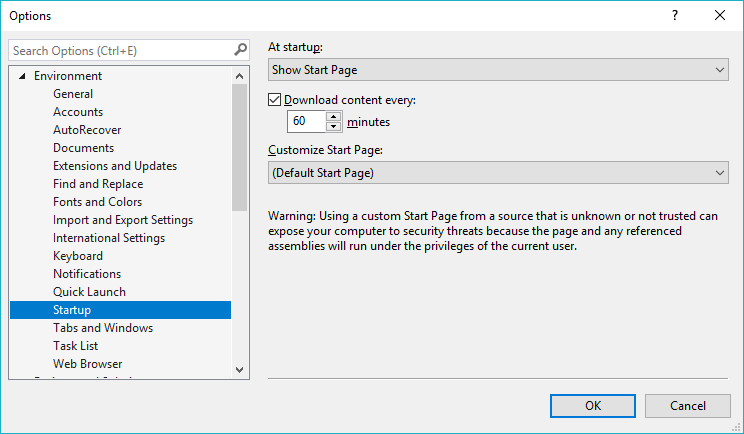 |
Tabs and Windows
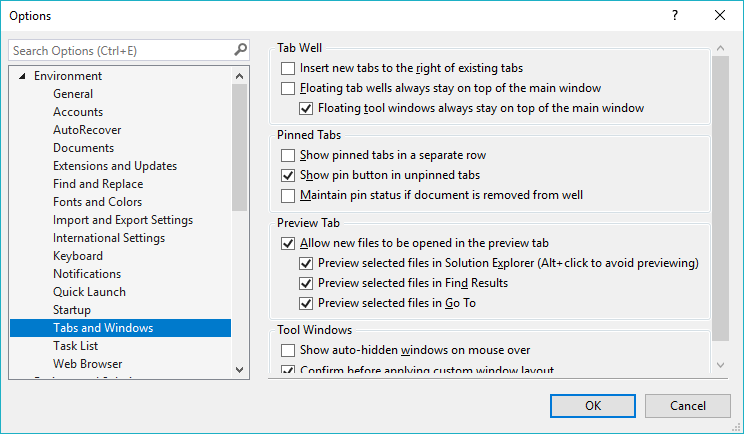 |
Task List
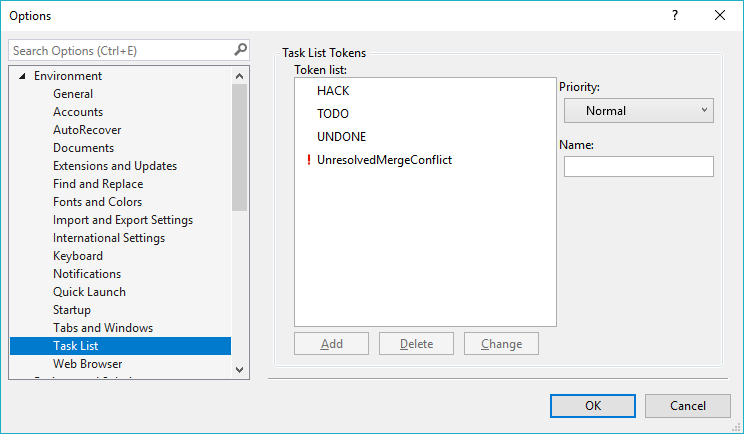 |
Web Browser
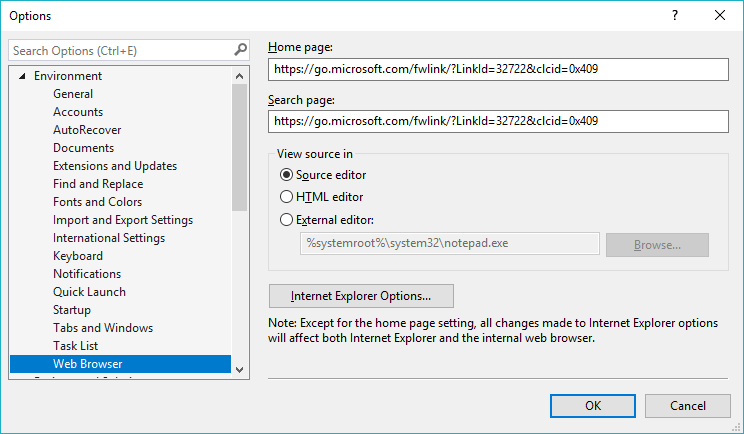 |
Options - Projects and Solutions
General
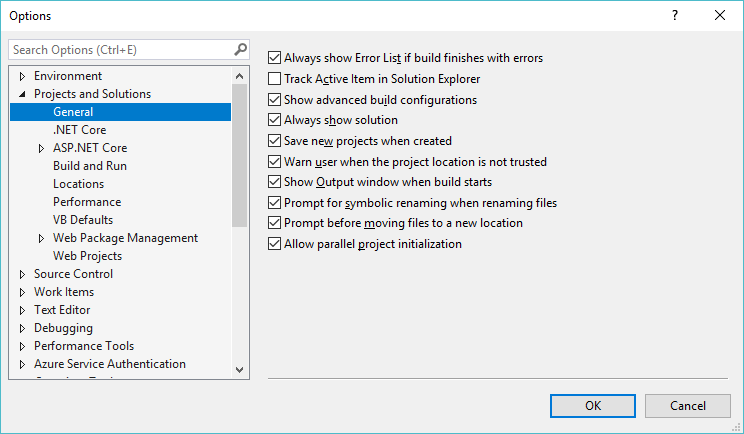 |
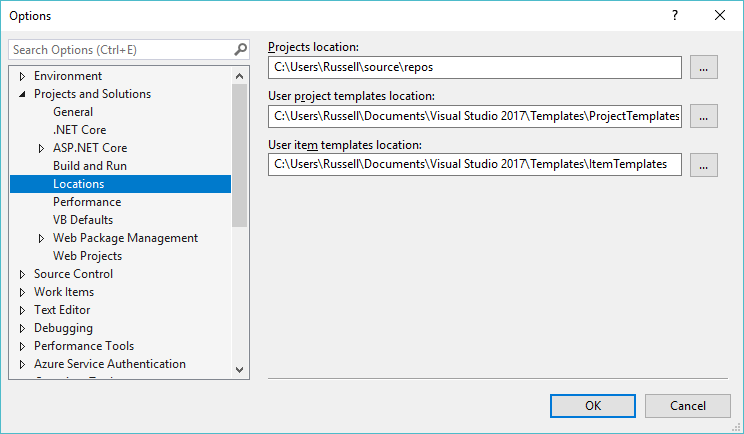
Projects location - Default location for new projects and solutions.
Use project templates location - Default location used by the New Project dialog box to create the list of My Templates.
Use item templates location - Default location used by the Add New Item dialog box to create the list of My Templates.
Always show error list if build finishes with errors - Opens the Error List window automatically when a build fails.
Track active item in solution explorer - Highlights the active file in the solution explorer window. This used to happen automatically but is now switched off by default.
Show advanced build configurations - This gives you access to the Configuration Manager allowing you to switch between debug and release build types. If this is not ticked then the build type is controlled for you depending on your action. Pressing F5 or selecting (Debug > Start Debugging) will create a debug build. Pressing (Build > Build Solution) will create a release build.
Always show solution -
Save new projects when created -
Warn user when the project location is not trusted -
Show output window when build starts - Displays the output window automatically (it is it not already displayed) when a build starts.
Prompt for symbolic renaming when renaming files -
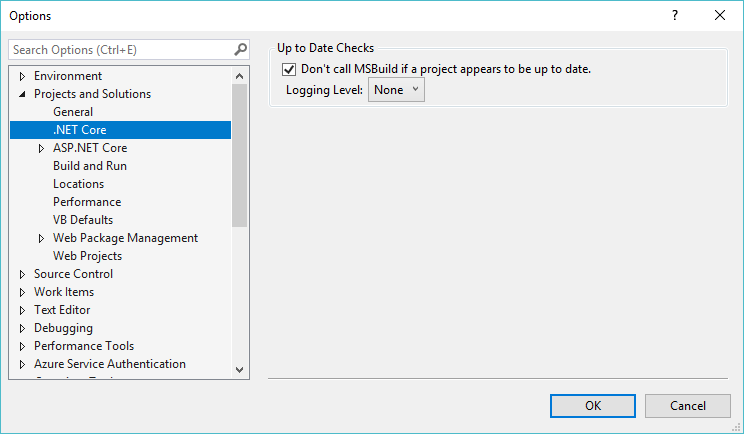
.NET Core
 |
Build and Run
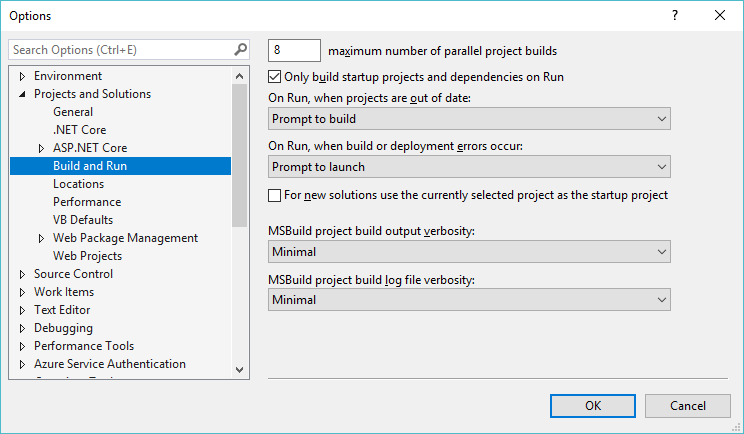 |
Before build -
Maximum number of parallel project builds -
Only build startup projects and dependencies on Run -
On run, when projects are out of date -
On run, when build or deployment errors occur -
For new solutions use the currently selected project as the startup project -
MSBuild project build output verbosity -
MSBuild project build log file verbosity
Locations
 |
Performance
na
VB Defaults
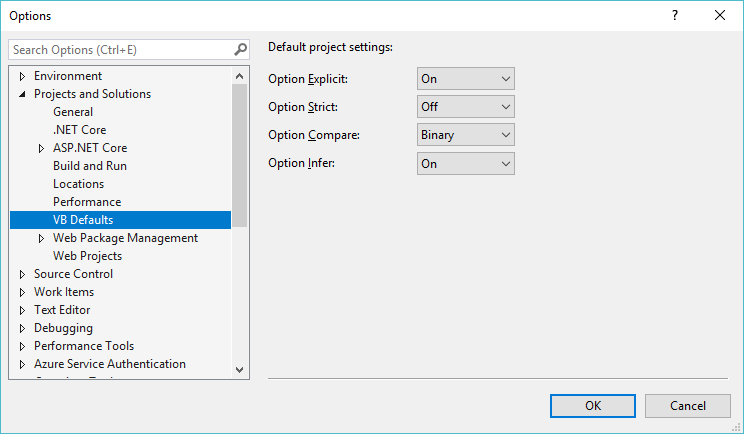 |
Option Explicit - When this is used you must explicitly declare all your variables before using them. On by default.
Option Strict - Explicit narrowing conversions are required. Off by default.
Option Compare - Controls whether string comparisons are binary (case sensitive) or text (case insensitive). Binary by default.
Option Infer - Sets the compiler default for local type inference. On by default in new projects.
Web Package Management
na
Web Projects
na
Options - Source Control
Plugin Selection
 |
Environment
 |
Plugin Settings
 |
Text Editor - General
General
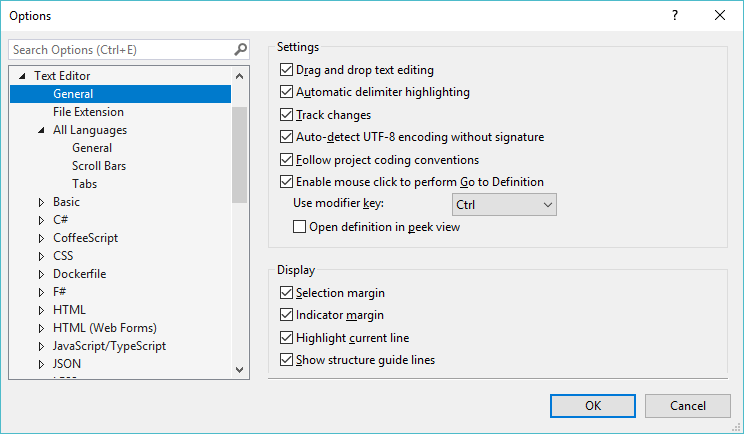 |
Drag and drop text editing -
Automatic delimiter highlighting -
Track changes -
Auto-detect UTF-8 encoding without signature -
Follow project coding conventions -
Enable mouse click
Selection margin -
Indicator margin -
Vertical scrollbar -
Horizontal scrollbar -
File Extension
na
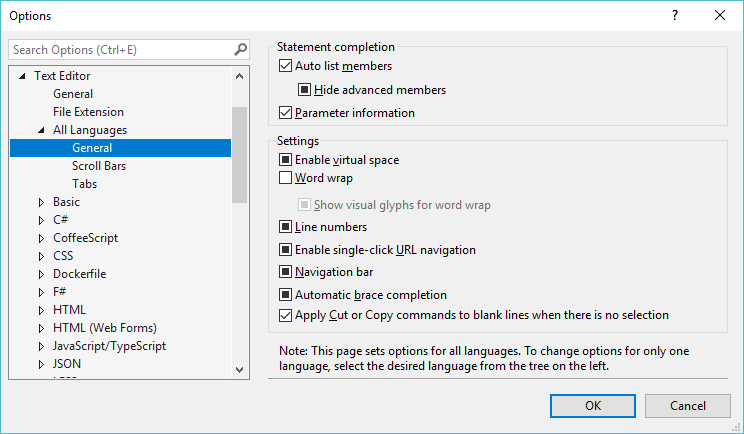
All Languages > General
 |
HTML (Web Forms) > Formatting
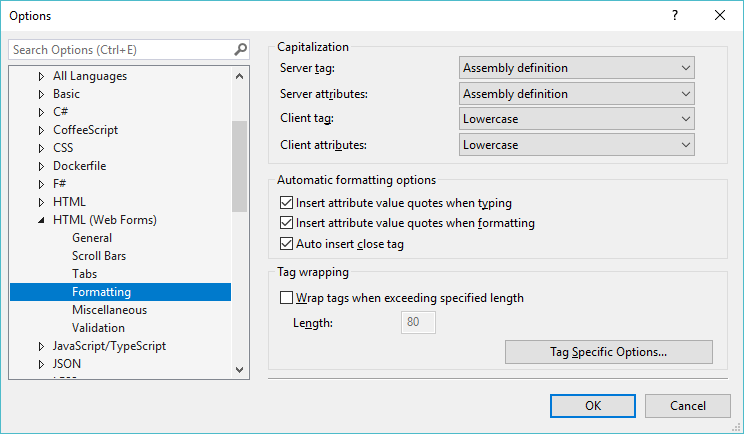 |
Server tag -
Server attributes -
Client tag -
Client attributes -
Insert attribute value quotes when typing -
Insert attribute value quotes when formatting -
Auto insert close tag -
Wrap tags when exceeding specified length -
Tag specific options -
HTML (Web Forms) > Validation
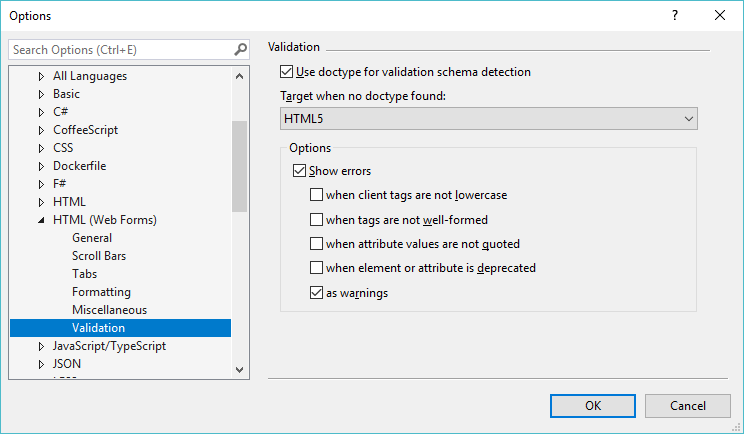 |
Target when no doctype found -
Show errors -
When client tags are not lowercase -
When tags are not well-formed -
When attribute values are not quoted -
When element or attribute is deprecated -
In CSS -
As warnings (HTML, CSS) -
Text Editor - Basic
Basic > General
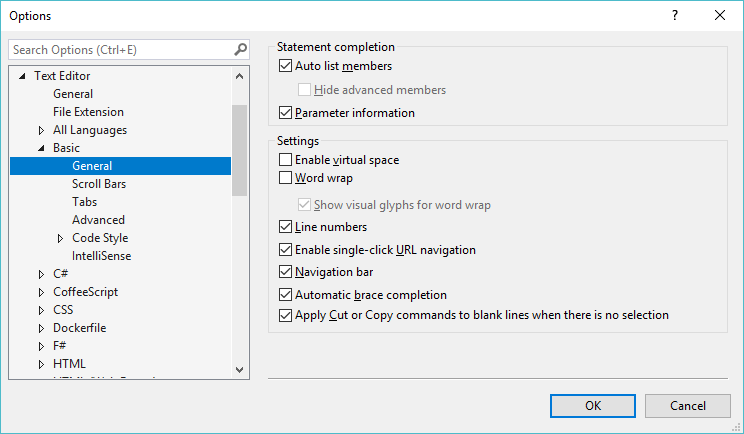 |
Auto list members -
Hide advanced members -
Parameter information - (Disabled)
Enable virtual space -
Word wrap -
Show visual glyphs for word wrap - (Disabled)
Apply cut or copy commands to blank lines when there is no selection -
Line numbers -
Enable sngle-click URL navigation -
Navigation bar - (Disabled)
Basic > Tabs
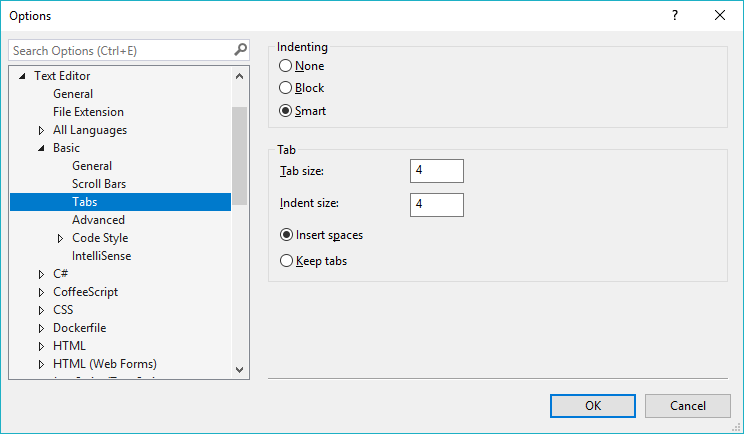 |
None - No indenting
Block -
Smart -
Tab Size - Default 4.
Indent Size - Default 4.
Insert Spaces - Default.
Keep tabs -
Basic > Advanced
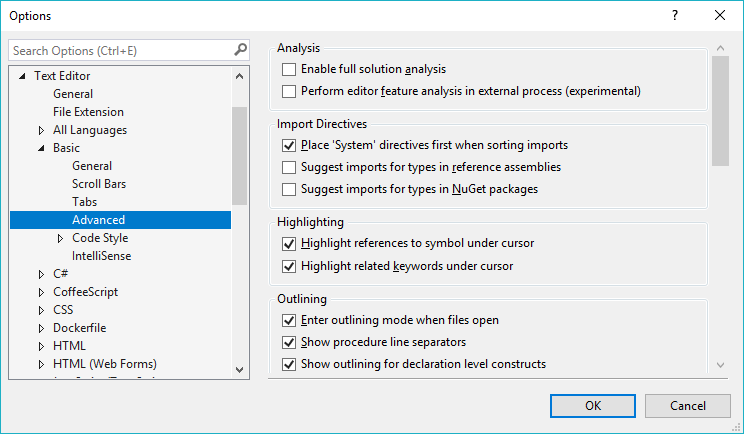 |
Automatic insertion of end constructs -
Pretty listing (reformatting) of code -
Enable outlining mode -
Automatic insertion of Interface and mustoverride members -
Show procedure line separators -
Enable error correction suggestions -
Enable highlighting of references and keywords -
Text Editor - C#
C# > General
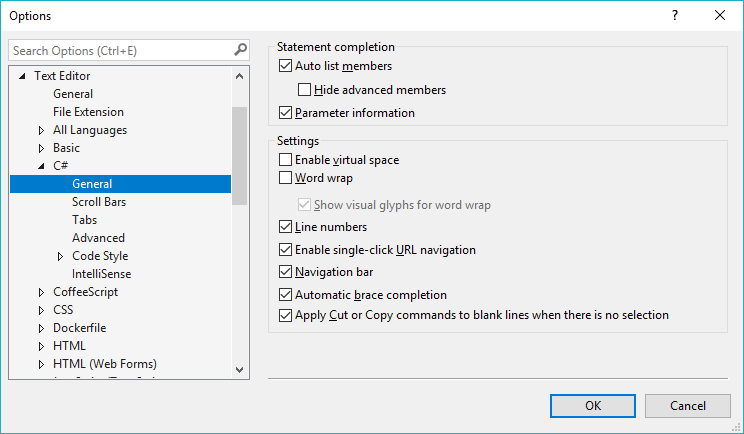 |
Auto list members -
Hide advanced members -
Parameter information - (Disabled)
Enable virtual space -
Word wrap -
Show visual glyphs for word wrap - (Disabled)
Apply cut or copy commands to blank lines when there is no selection -
Line numbers -
Enable sngle-click URL navigation -
Navigation bar - (Disabled)
C# > Tabs
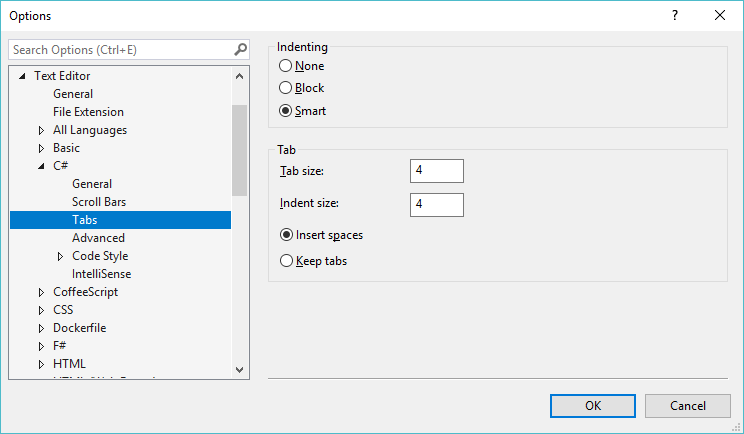 |
None - No indenting
Block -
Smart -
Tab Size - Default 4.
Indent Size - Default 4.
Insert Spaces - Default.
Keep tabs -
C# > Advanced
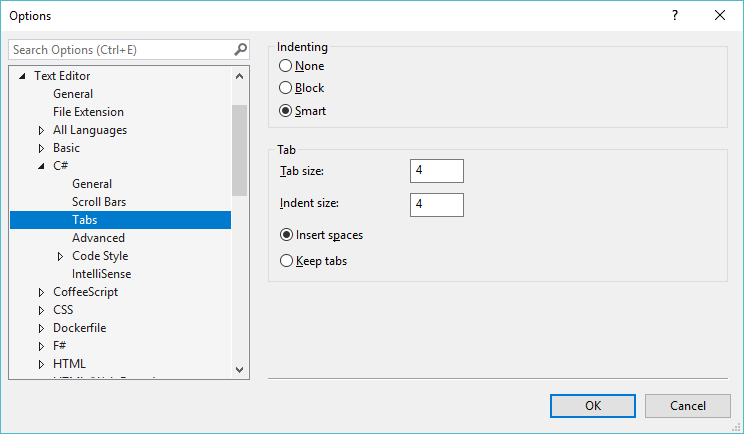 |
Enter outlining mode when files open -
Underline errors in the editors -
Show line semantic errors -
Highlight references to symbol under cursor -
Verify results of refactoring -
Warn if there are compiler generated references -
Generate XML documentation comments for /// -
Surround generated code with #region -
Place 'System' directives first when sorting usings -
C# > Code Style > Formatting
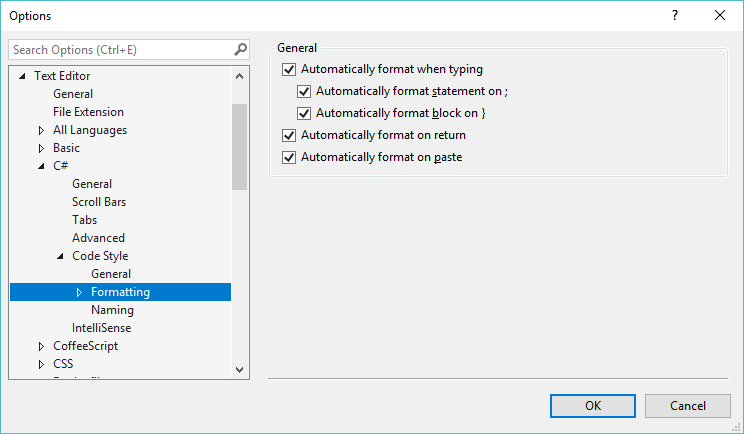 |
C# > Intellisense
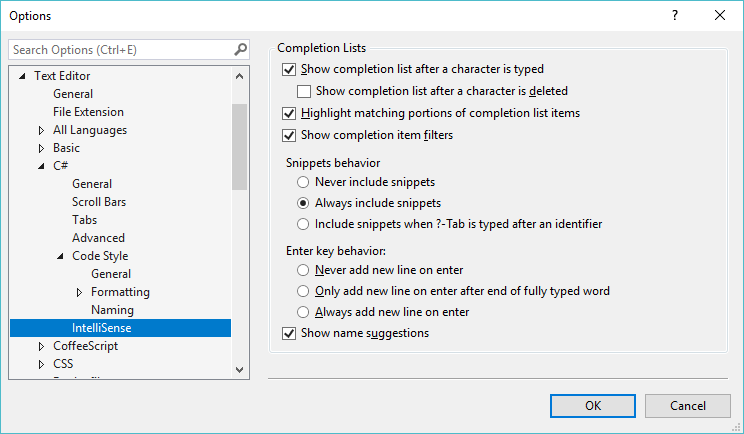 |
Show completion list after a character is typed -
Place keywords in completion list -
Place code snippets in completion list -
Committed by typing the following characters -
Committed by pressing the space bar -
Add new line on enter at end of fully typed word -
Pre-select most recently used member -
Text Editor - JavaScript / TypeScript
General
Scroll Bars
Tabs
Code Validation
EsLint
Formatting
Intellisense
Language Service
Project
Options - Debugging
General
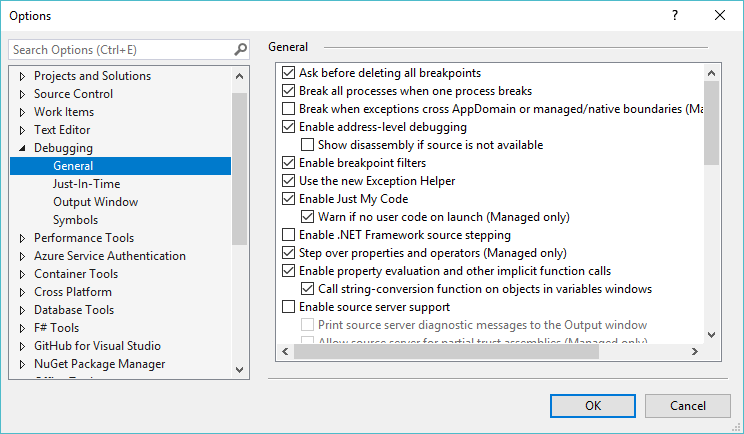 |
Ask before deleting all breakpoints - Prompts for confirmation when you select (Debug > Delete All Breakpoints).
Break all processes when one process breaks -
Break when exceptions cross AppDomain or managed/native boundaries (managed only) -
Enable address-level debugging -
Enable breakpoint filters - Allows you to define filters on breakpoints so they will affect only specific processes, threads or computers.
Enable the exception assistant -
Unwind the call stack on unhandled exceptions -
Enable just my code (managed only) - The debugger displays and steps through only your code ignoring system code and other code not optimised for debugging.
Show all members for non-user objects in variables windows - (Visual Basic Only)
Warn if no user code on launch -
Enable .NET Framework source stepping -
Step over properties and operators (managed only) -
Enable property evaluation and other implicit function calls -
Call string-conversion function on objects in variabes windows -
Enable source server support -
Print source server diagnostic messages to the Output window -
Highlight entire source line for breakpoints and current statement -
Require source files to exactly match the original version -
Redirect all Output windows text to the Immediate window -
Show raw structure of objects in variables windows -
Suppress JIT optimization on module load (Managed only) -
Warn if script debugging is disabled on launch -
Enable function evaluations when minidump debugging through IL interpretation (Managed only) -
Show parallel stacks diagram bottom-up -
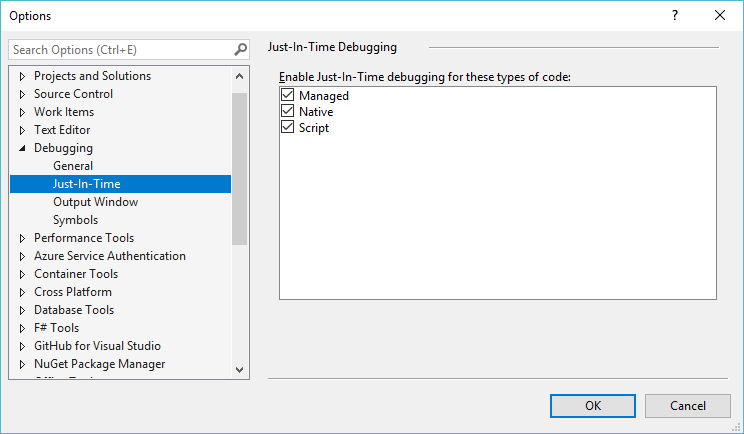
Just in Time
 |
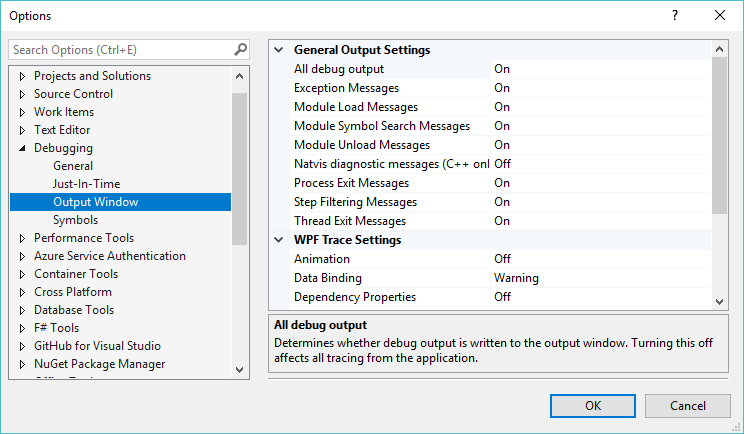
Output Window
 |
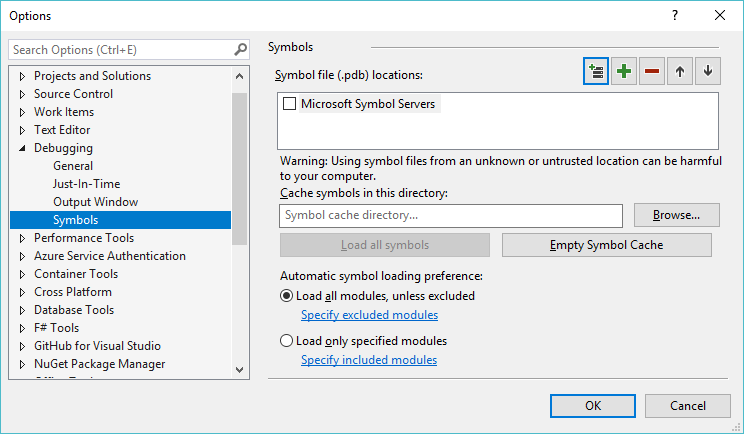
Symbols
 |
Options - Performance Tools
General
na
Performance Tools - Rules
na
Options - Database Tools
General
na
Data Compare
na
Data Connections
na
Data Generator
na
Database Errors and Warnings
na
O/R Designer
na
Query and View Designers
na
Schema Compare
na
Table and Database Designers
na
Transact-Sql Editor
na
Options - Office Tools
Excel Keyboard
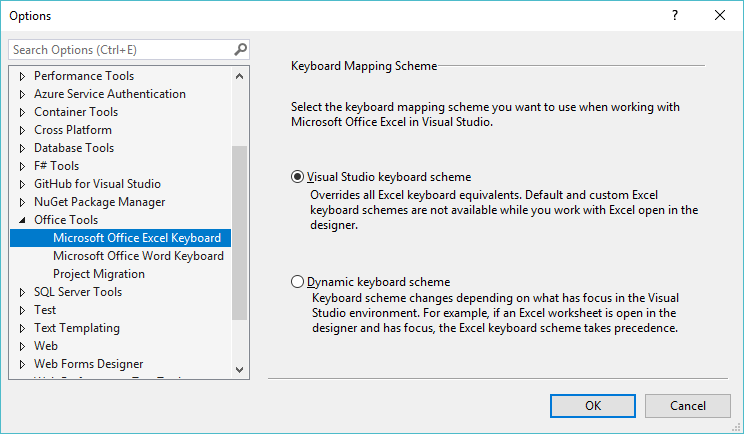 |
Visual Studio Keyboard Scheme -
Dynamic Keyboard Scheme -
Word Keyboard
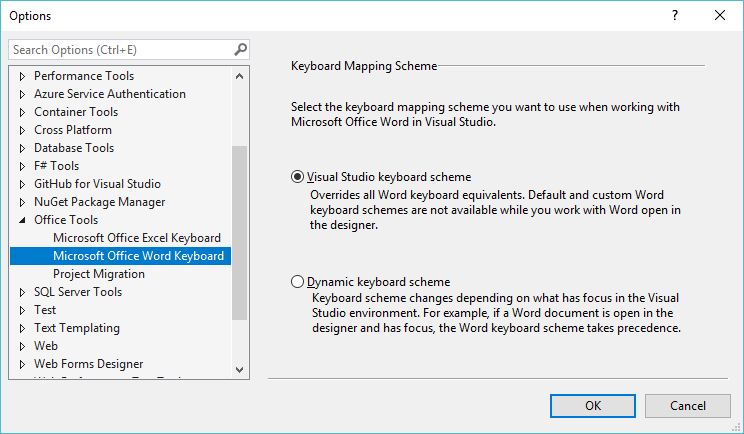 |
Visual Studio Keyboard Scheme -
Dynamic Keyboard Scheme -
Project Migration
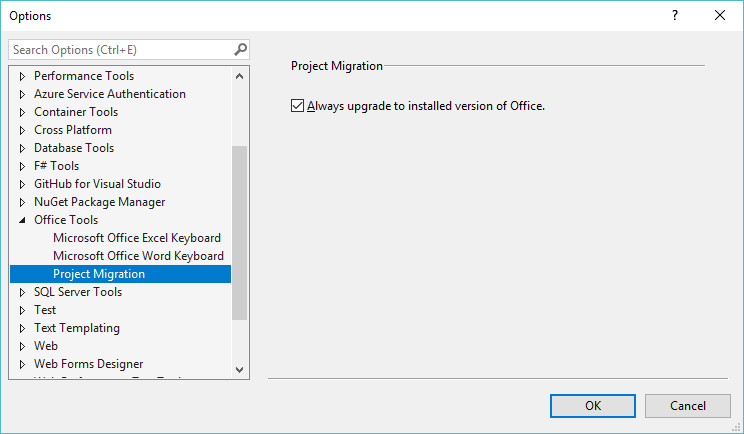 |
Always upgrade io installed version of Office - Displays the Visual tudio Conversion Wizard if you open a 2003 add-in project but you have 2007 installed on your PC. Office 2007 can host 2003 add-in projects so this allows you to continue and develop a 2003 add-in project even though you don't have 2003 installed. (not available for document level customisations)
Options - Device Tools
General
na
Show device choices before deploying a device project -
Show skin in windows forms designer -
Devices
na
Show devices for platform -
Devices -
Save as -
Rename -
Delete -
Properties -
Default device -
Options - Windows Forms Designer
General
na
Code generation settings -
Layout settings -
Object bound smart tag settings -
Refactoring -
Toolbox -
Data UI Customization
na
Data type -
Associated controls -
© 2026 Better Solutions Limited. All Rights Reserved. © 2026 Better Solutions Limited TopPrevNext