Add-ins - JavaScript
JavaScript add-ins are Microsoft's modern, cross-platform way to extend the Microsoft Office applications.
They can be used to extend and customise Excel, Word, Outlook, and PowerPoint.
They can be created using all the standard web technologies - HTML, CSS, and JavaScript.
They replace the old Windows-only COM/VSTO model with something far more portable and secure.
These are the Big Brother superset of Office Scripts
link - learn.microsoft.com/en-us/office/dev/add-ins/overview/office-add-ins
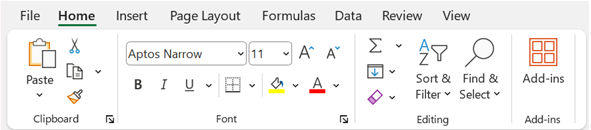
You can see which Web add-ins are available and installed by clicking on the Add-ins button on the Home tab.
 |
This will display the following drop-down and the add-ins listed at the top are currently installed.
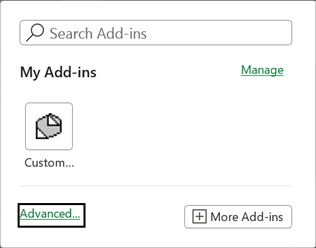 |
Manage - Displays the "Store Dialog" and shows the "Manage your apps" window (displayed below). Added in 2025.
Advanced - Displays the "Office Add-ins" dialog box (displayed below).
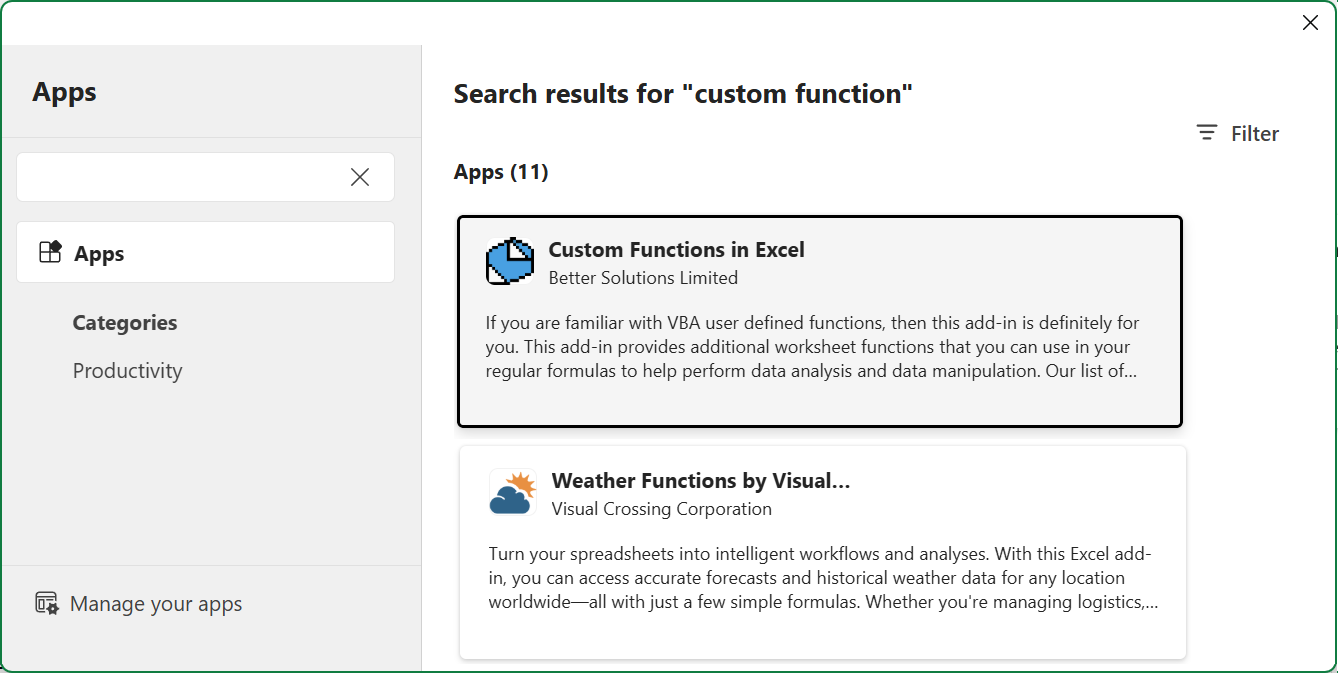
More Add-ins - Displays the "Store Dialog" and shows the "Apps" window.
Store Dialog
This dialog box will display all the add-ins available in the Office App Store and enable quick and easy installation.
 |
Office Add-ins Dialog Box
Displays add-ins that you have installed and/or purchased from the Office Store.
MY ADD-INS
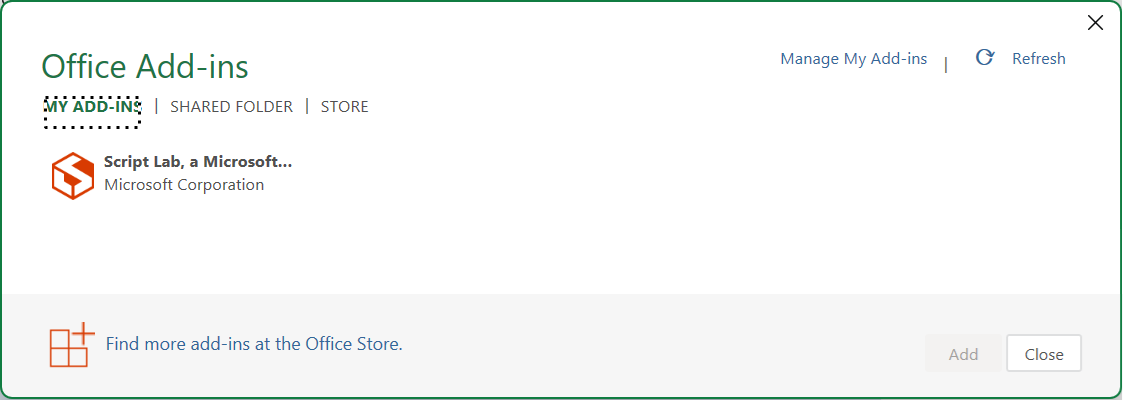 |
To permanently disable or remove an add-in, it must be removed from the My Add-ins tab.
Manage My Add-ins - This will display a summary page of your add-ins.
Refresh - This will reload your add-ins.
SHARED FOLDER
Displays add-ins from any shared folders (local or network).
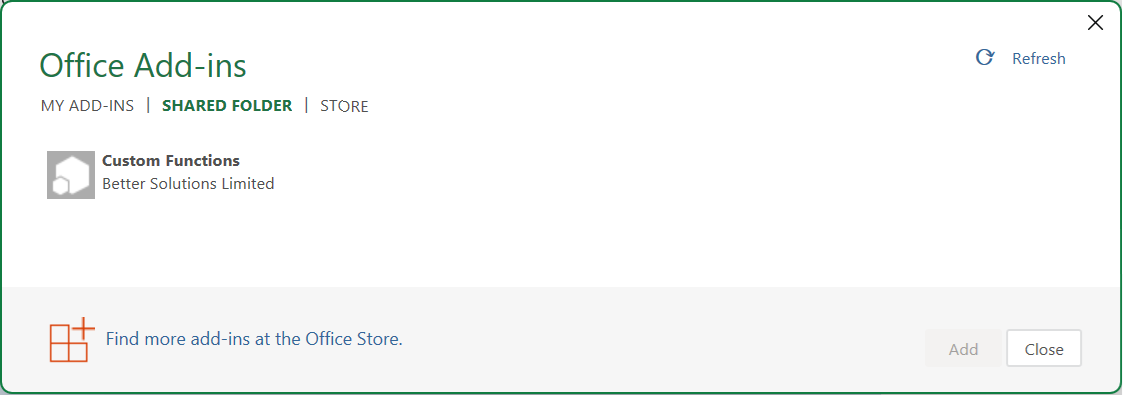 |
If you delete the manifest file from the shared folder, the add-in will disappear from being displayed on this tab.
The add-in will still be loaded though because it has been saved in the cache.
To remove the cache, close all Office applications and delete the entire contents of the WEF folder.
If the manifest file is not removed and the WEF folder is cleared, you can press Refresh to reload the add-in and out it back into the cache.
Refresh - This will reload your add-ins.
ADMIN MANAGED
Displays add-ins that have been centrally deployed from the Microsoft 365 Admin Center.
STORE
Displays all the add-ins that are available in the Office Store.
To add/load an add-in press the Add button.
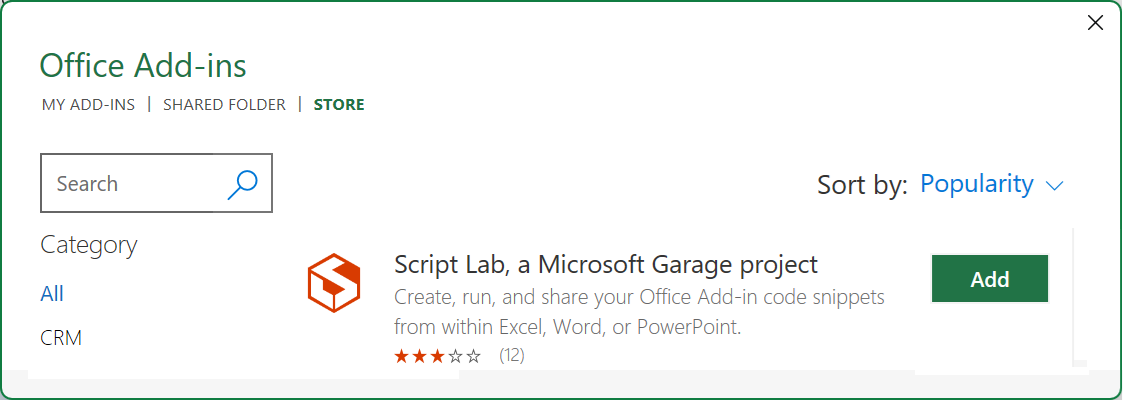 |
MY ORGANIZATION
Displays add-ins from a SharePoint App Catalog.
Developer Tab
If you have the Developer Tab displayed you can access the individual add-in dialog boxes from here.
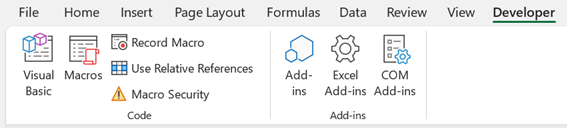 |
Add-ins - Displays the "Store Dialog" and shows the "Apps" window.
Excel Add-ins - Displays the "VBA Add-ins" dialog box.
COM Add-ins - Displays the "COM / VSTO Add-ins" dialog box.
More Information
It is not possible to access Web Add-ins from the Excel Options dialog box.
[[C# > Web Add-ins > Index]]
[[JavaScript > Office Add-ins]]
© 2026 Better Solutions Limited. All Rights Reserved. © 2026 Better Solutions Limited TopPrevNext