Fill
Using the (Format > Cells) dialog box
You can include a background colour with your pattern by choosing a colour from the Cell Shading box.
Select a background color in the Color box, and then select a pattern in the Pattern box to format the selection with color patterns.
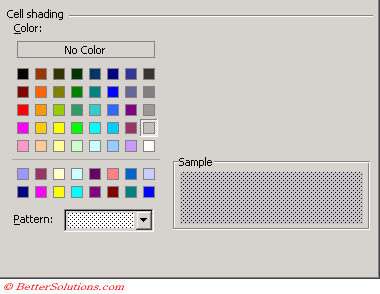 |
The sample pane will preview how your background, pattern and colour will look.
Remember
It is not possible to change the colours from this dialog box. If you want to change the colours on your palette then you must use the (Tools > Options)(Color tab).
In 2003 this tab was called the Patterns tab.
Alternate Shading
If you find that your data moves around a lot and you would like to apply automatic alternate shading to a range of cells then this is possible using Conditional Formatting.
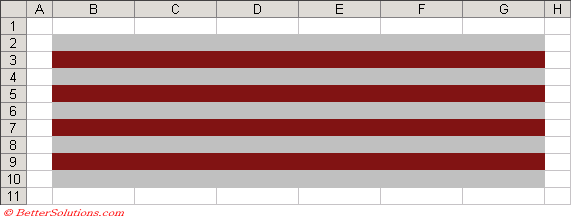 |
Select the cells you want to shade and select (Format > Conditional Formatting).
For more information about Conditional Formatting, please refer to the Conditional Formatting section.
You can use formulas to determine the outcome and depending on the formula used it does not even have to contain any cell references.
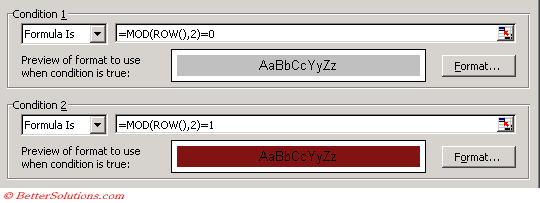
In Condition 1 type the following formula "=MOD(ROW(),2)=0".
The ROW function returns the row number of the current cell and then the MOD function is used to obtain the remainder after dividing this number by 2. This formula is True for any cells that have even row numbers.
In Condition 2 type a similar formula "=MOD(ROW(),2)=1".
This formula is True for any cells that have odd row numbers.
 |
Shading alternate Columns
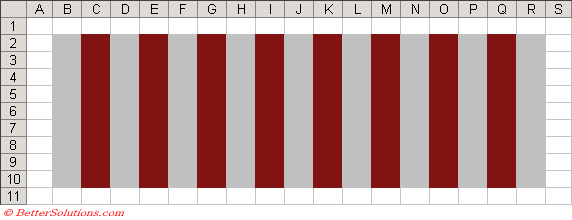
You can use an identical method to the one above to apply automatic shading to your columns as well.
In Condition 1 type the following formula "=MOD(COLUMN(),2)=0".
In Condition 2 type the following formula "=MOD(COLUMN(),2)=1".
 |
Shading alternate Rows (Bands)
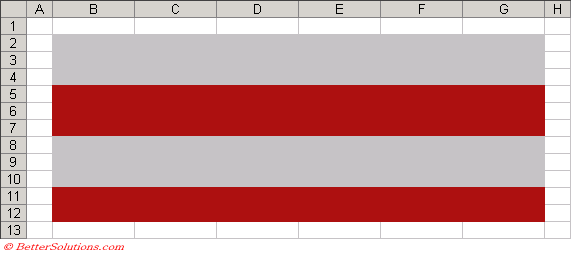
You can use a similar method to the one above to apply automatic shading to bands of rows.
In this example we want to shade the rows in blocks of 3.
In Condition 1 type the following formula "=MOD(ROW()-2,3*2)+1<=3".
In Condition 2 type the following formula "=MOD(ROW()-2,3*2)+1>3".
 |
Shading alternate Columns (Bands)
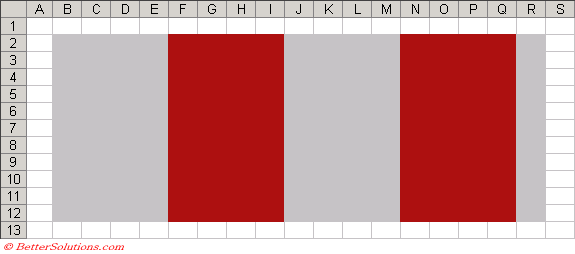
You can use a similar method to the one above to apply automatic shading to bands of columns.
In this example we want to shade the columns in blocks of 4.
In Condition 1 type the following formula "=MOD(COLUMN()-2,4*2)+1<=4".
In Condition 2 type the following formula "=MOD(COLUMN()-2,4*2)+1>4".
 |
Flashing Text
It is very easy to create cells that flash using a bit of VBA code.
The first step is to create a new style called "Flash". Select (Format > Styles) and type "Flash" and press Add.
This is the style you apply to any cells that you want to flash.
Lets assume you want to the cells to flash constantly while the workbook is open.
We need to add the following 2 lines of code to the events "Workbook_Open" and "Workbook_BeforeClose".
This code needs to be put in the ThisWorkbook code module.
Private Sub Workbook_Open()
   Call StartFlashing
End Sub
Private Sub Workbook_BeforeClose(Cancel As Boolean)
   Call StopFlashing
End Sub
Create a new code module and add the following three subroutines.
Flash Text Subroutine
The FlashText subroutine just changes the properties of the Flash style every second to create a flashing effect.
Public Sub StartFlashing()
   Application.OnTime EarliestTime:=Now() + TimeSerial(0, 0, 1), _
                      Procedure:="FlashText", _
                      Schedule:=True
End Sub
Public Sub StopFlashing()
   On Error Resume Next
   Application.OnTime EarliestTime:=Now() + TimeSerial(0, 0, 1), _
                      Procedure:="FlashText", _
                      Schedule:=False
End Sub
Public Sub FlashText()
   Static bBoolean As Boolean
   With ActiveWorkbook.Styles("Flash")
      If bBoolean = True Then
         .Font.Color = RGB(255, 255, 255)
         .Interior.Color = RGB(10, 10, 255)
      Else
         .Font.Color = RGB(0, 0, 0)
         .Interior.ColorIndex = xlNone
      End If
   End With

   bBoolean = Not bBoolean
   Application.OnTime EarliestTime:=Now() + TimeSerial(0, 0, 1), _
                      Procedure:="FlashText", _
                      Schedule:=True
End Sub
© 2026 Better Solutions Limited. All Rights Reserved. © 2026 Better Solutions Limited TopPrevNext