Getting Started
Auto Syntax Check
As you type your code it is automatically checked for syntax errors.
If any syntax errors are found then you are alerted with a pop up message box.
For example any misspelled keywords or missing separators will be identified.
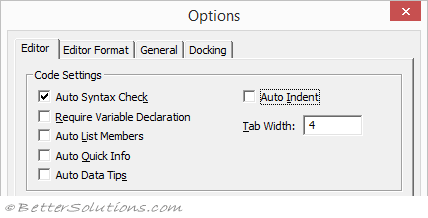 |
When this option is switched On.
Typing Public Sob Test and pressing Enter will display a pop up dialog box.
Public Sob Test
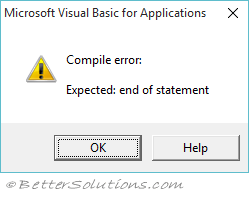 |
Also changing a valid line to an invalid line will also display a pop up dialog box.
Public Sub Test
Public Sob Test
When to Turn this Off
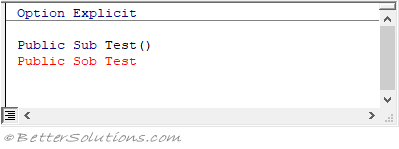
At some point you may start to find these pop ups frustrating in which case it is time to turn this option off.
Don't worry though your syntax errors will still be identified in a different colour, so they are easy to spot.
 |
Indentation and White Space
White space is ignored in VBA and the editor will automatically discard any extra spaces.
If you type
myInteger = 6
This will be automatically changed to
myInteger = 6
The exception is when whitespace is included within double quotes, as part of a string.
You can use the Tab key to indent your lines of code that logically belong together to make the code easier to read.
The tab key should be used instead of pressing the spacebar multiple times.
You can also use (Shift + Tab) to "unindent" your lines of code.
You can change the default tab size from the (Tools > Options)(Editor tab).
Function DoSomething() As Integer
   Dim iNumber As Integer
   For iNumber = 1 to 5
      DoSomething = DoSomething + iNumber
   Next iNumber
End Sub
The Indent and Outdent buttons on the Edit toolbar can also be used on blocks of code.
 | Indent - Shifts all the lines (in the current block) to the next tab stop. |
 | Outdent - Shifts all the lines (in the current block) to the previous tab stop. |
Intellisense
Intellisense is basically auto-completion when you are typing.
This displays a short description of member, function, arguments etc next to the cursor and is a convenient way to access functions, parameters, enumerations etc.
Using intellisense speeds up development by reducing keyboard input.
Auto List Members
This displays a tooltip containing a list of methods and properties.
SS - icon methods
SS - icon properties
This looks like tooltips that are relevant to the current line and current scope.
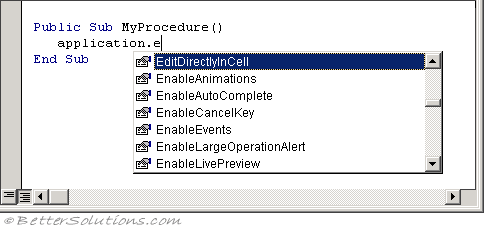 |
The user can then select one from the drop-down using the arrow keys and then hitting the completion character (Tab) or (Enter).
You can show pop-up manually (Ctrl + J) or (Ctrl + Space)
Auto Quick Info
Displays information about functions and their corresponding arguments.
SS - Call MsgBox()
Automatic Intellisense
Range("A2").
No Intellisense
There is no intellisense with the following code
This is because the Sheets collection can contain two different types of objects
Sheets(1).
Worksheets(2)
Remember
All code should be consistently indented with line spaces where appropriate.
Different parts of the code should be separated by using a blank line.
Indentation should be used to highlight the block structure and control statements.
Tabs must be used for indentation (4 which is the default).
One statement per line. Avoid putting multiple statements on the same line (ie using :). This makes debugging more difficult as the project might have to be reset after making dynamic changes. The only exception to this is if you are initialising a simple variable.
One Instruction Per Line
The accepted practice when writing VBA code is to put one instruction on each line.
This make the code much easier to follow and understand.
Sub DoSomething()
   Dim iNumber1 As Integer
   Dim iNumber2 As Integer
   iNumber1 = 5
   iNumber2 = 10
   Call MsgBox(iNumber1 + iNumber2)
End Sub
It is possible to have multiple instructions on a single line by using a colon ":" to separate them.
Sub DoSomething()
   Dim iNumber1 As Integer: Dim iNumber2 As Integer
   iNumber1 = 5: iNumber2 = 10
   Call MsgBox(iNumber1 + iNumber2)
End Sub
Or Even:
Sub DoSomething(): Dim iNumber1 As Integer: Dim iNumber2 As Integer: iNumber1 = 5: iNumber2 = 10: Call MsgBox(iNumber1 + iNumber2): End Sub
Line Continuation Character
Lines of VBA code can often be quite long and difficult to read so you are encouraged to use the line continuation character.
For any lines of code that are quite long you can use the line continuation character to split them into several lines.
The VBA Editor only allows 1023 characters per line.
VBA does not word wrap.
The line continuation character "_" is actually two characters.
There must always be a space before the underscore.
Remember it is possible to have multiple instructions on a single line by using a colon ":" to separate them.
The following two lines is valid syntax but very difficult to read and should be avoided.
Sub DoSomething(): Dim iNumber1 As Integer: Dim iNumber2 As Integer: _
iNumber1 = 5: iNumber2 = 10: Call MsgBox(iNumber1 + iNumber2): End Sub
Examples
The line continuation character cannot be followed by any other characters (including comments).
You cannot have a line continuation character in the middle of a literal string.
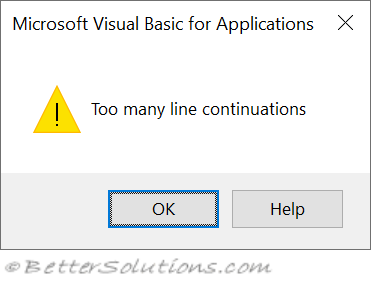
Maximum of 24
You cannot include more than 24 line continuation characters in a single expression.
 |
If you ever run into this limitation, you should use string concatenation instead.
Public Sub LineContinuation()
Dim sMyString As String
    sMyString = "one" & _
                "two" & _
                "three" & _
                "four" & _
                "five" & _
                "six" & _
                "seven" & _
                "eight" & _
                "nine" & _
                "ten" & _
                "eleven" & _
                "twelve" & _
                "thirteen" & _
                "fourteen" & _
                "fifteen" & _
                "sixteen" & _
                "seventeen" & _
                "eighteen" & _
                "nineteen" & _
                "twenty" & _
                "twentyOne" & _
                "twentyTwo" & _
                "twentyThree" & _
                "twentyFour" & _
                "twentyFive" & _
End Sub
If you ever run into this limitation, you should consider passing in an object.
Public Sub PassingInArguments( _
   ByVal iOne as Integer, ByVal iTwo as Integer, ByVal iThree as Integer, _
   ByVal iFour as Integer, ByVal iFive as Integer, ByVal iSix as Integer _
   ByVal iSeven as Integer, ByVal iEight as Integer, ByVal iNine as Integer, _
   ByVal iTen as Integer, ByVal iEleven as Integer, ByVal iTwelve as Integer, _
   ByVal iThirteen as Integer, ByVal iFourteen as Integer, ByVal iFifteen as Integer, _
   ByVal iSixteen as Integer, ByVal iSeventeen as Integer, ByVal iEighteen as Integer, _
   ByVal iNineteen as Integer, ByVal iTwenty as Integer, ByVal iTwentyOne as Integer, _
   ByVal iTwentyTwo as Integer, ByVal iTwentyThree as Integer, ByVal iTwentyFour as Integer, _
   ByVal iTwentyFive as Integer, _
End Sub
Capitalisation Changes
Also referred to as Automatic Case-Correction.
Not Case Sensitive
The VBA compiler is not case sensitive so there is no distinction between variable names written in lowercase, mixedcase or uppercase.
To see this in action create the following subroutine and declare each of these variables one line at a time.
Every time you type in a new declaration with different lowercase and uppercase characters all the names get changed.
Public Sub MySub()

Dim myvariable As String
Dim myVariable As String
Dim MyVariable As String
Dim MYVARIABLE As String
Dim myvariable As String

End Sub
More Realistic Example
Lets assume that you have multiple declarations of the same variable name in your code.
The last declaration that has been added or edited will determine the case of ALL the variables that have the same name.
To see this in action modify the subroutine to only include a lowercase declaration.
Public Sub MySub()
Dim myvariable As String
End Sub
Then add a simple function declaration underneath making sure that this parameter/variable name is entered in uppercase.
Public Function MyFunction(ByVal MYVARIABLE As String)
End Function
You will see that the case of the variable declaration in the subroutine will get changed to uppercase.
Affects the Whole Project
This automatic changing of the case is completely independent of scope and context.
This case-correction will happen inside modules, classes and userforms.
This time add the following subroutine to Module1 using a lowercase variable name.
Public Sub MySub()
Dim myvariable As String
End Sub
Then add the following function declaration to Module2 using an uppercase parameter/variable name.
Public Function MyFunction(ByVal MYVARIABLE As String)
End Function
You will see that when you go back to Module1, the case of this variable has changed.
Consistent Naming Convention
If you are inconsistent when declaring your variables (or parameters) the Visual Basic Editor will automatically change the capitalisation.
The best and permanent solution is to standardise the case across the whole project.
If you have multiple developers working on the same project you will need to agree a clear naming convention.
A popular convention is to always prefix local variables with an underscore and always declare constants in all uppercase.
Source Control
The most common platforms used for source controls are GitLab and GitHub
You can be constantly reminded of this feature if you have large VBA Projects with lots of code being worked on by several developers.
Different developers always have different styles and naming conventions when it comes to uppercase and lowercase characters in variable names.
When you have a small amount of code you can work around this feature by using a simple naming convention.
If you have a large amount of code changing your code to be consistent will require some effort.
If you are using a source control system and cannot introduce consistency then this 'feature' is very frustrating.
Most source control system are case sensitive and will consider everything to be a 'code change' even when the capitalisation of a variable changes.
This will pollute the revision history and make it harder to spot the 'real code changes'.
© 2026 Better Solutions Limited. All Rights Reserved. © 2026 Better Solutions Limited TopPrevNext