Displaying
To test your userform, press F5 or select (Run > Run Sub / Userform)
frmUserform1.Show
Call Load(frmUserform1) - This step is not necessary !!!
'initialisation before the userform is actually displayed
frmUserform1.Show
Loading a userform loads it into memory but it is not visible until you use the Show method.
If you have a complex userform you might want to load it in to memory before it is actually needed so it appears more quickly when you use the Show method.
The Load is not necessary unless you do not want the dialog box displayed initially and you want to customise the initialisation.
If the Userform has not been loaded when the Show method is invoked then the userform will be loaded automatically. It is always better to explicitly load the userform first though.
link - learn.microsoft.com/en-us/office/vba/language/reference/user-interface-help/show-method
Modal
The most common type of dialog box is a modal dialog box.
By default all userforms are displayed as modal which means that the user must close the userform before they can continue to use the application.
When a UserForm is modal, the user must supply information or close the userform before using any other part of the application. No subsequent code is executed until the userform is hidden or unloaded.
Although other forms in the application are disabled when a userform is displayed, other applications are not.
Userform1.Show ([modal])
modal - A boolean value that determines if the userform is displayed as a modal userform or a modeless userform.
Userform1.Show()
Userform1.Show (VBA.FormShowConstants.vbModal) 'this is the default
Userform1.Show (1)
Sub Macro1()
   Load UserForm1
   UserForm1.Show (VBA.FormShowConstants.vbModal)
End Sub
VBA.FormShowConstants.vbModal = 1
VBA.FormShowConstants.vbModeless = 0
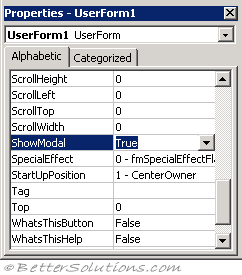
ShowModal property
The default value for this property is True which will display the userform in a modal mode.
You can change this to False if you would rather display the userform in a modeless mode.
 |
Modeless
It is possible to create modeless (as well as modal) dialog boxes.
Modeless dialog boxes allow the user to continue to work in the application while the form is still displayed.
By default all userforms are displayed as modal which means that the user must close the userform before they can continue to use the application.
When the UserForm is modeless, the user can view other forms or windows without closing the UserForm.
Userform1.Show ([modal])
modal - A boolean value that determines if the userform is displayed as a modal userform or a modeless userform.
Userform1.Show (VBA.FormShowConstants.vbModeless)
Userform1.Show (0)
Sub Macro1()
   Load UserForm1
   UserForm1.Show (VBA.FormShowConstants.vbModal)
End Sub
VBA.FormShowConstants.vbModal = 1
VBA.FormShowConstants.vbModeless = 0
ShowModal property
The default value for this property is True which will display the userform in a modal mode.
You can change this to False if you would rather display the userform in a modeless mode.
|
Combining with RefEdit
Make sure you do not use a modeless form in combination with the RefEdit control for inputting cell ranges.
Otherwise Excel loses control over the keyboard focus and can only be terminated through brute force (task manager or Ctrl + Alt + Delete)
Remember
If you attempt to open a UserForm that has a ShowModal property in Microsoft Office 97, you get a run-time error because Office 97 only displays modal UserForms.
When a UserForm is modeless, subsequent code is executed as it's encountered. Modeless forms do not appear in the task bar and are not in the window tab order.
Closing
Once a userform is displayed using the Show method it remains displayed until it is dismissed, using the Unload statement or it is hidden using the Hide method.
Never Hide your userforms always close them since hiding them will not release the resources.
To close a userform use the Unload statement.
Call Unload(frmDisplay)
When the userform is displayed it remains visible until it is dismissed
When a userform is unloaded its controls are reset to their original values.
If the user's choice must be used later on you need to store the value in a global variable.
Terminate Event
A userform is automatically unloaded by default when the user clicks the close button (cross) in the upper right corner.
This close button has no event of its own.
Clicking the close button will stop execution of the userform and any cleanup instructions will not be executed.
The solution is to place your cleanup instructions inside the Userform_Terminate event handler.
This way both the Cancel and the close button will run the cleanup process.
Pressing ESC
Select the button and change the Cancel property to True
Repainting
The Repaint method will update the display by redrawing the form or page.
UserForm.Field2.Value = ""
UserForm.Label1.Caption = "LOADING..."
UserForm.Repaint
Hiding
Hides the userform although it is still loaded in memory so you can still access all the control values.
UserForm.Field2.Value = ""
UserForm.Label1.Caption = "LOADING..."
UserForm.Repaint
If for some reason you would like your userform to disappear immediately while its macro is still executing, use the Hide method at the top of the procedure and follow it with a DoEvents command.
For example the following procedure, the Userform disappears immediately when the button is pressed and then the userform eventually unloads once the code has been executed.
Private Sub CommandButton1_Click()
   Me.Hide
   DoEvents
   For r = 1 to 10000
      ''do something
   Next r
   Unload Me
End Sub
Hide the form when you actually press Cancel
Run any cleanup code
Unload the form after the cleanup code has run
Resizing
Private Declare Function ReleaseCapture Lib "user32" () As Long
Private Declare Function SendMessage Lib "user32" Alias "SendMessageA" _
   (ByVal hwnd As Long, ByVal wMsg As Long, ByVal wParam As Long, lParam As Any) As Long
Private Const WM_NCLBUTTONDOWN = &HA1
Private Const HTBOTTOMRIGHT = 17
Private Declare Function FindWindow Lib "user32" Alias "FindWindowA" _
   (ByVal lpClassName As String, ByVal lpWindowName As String) As Long

Private Sub UserForm_MouseDown( _
   ByVal Button As Integer, _
   ByVal Shift As Integer, _
   ByVal X As Single, _
   ByVal Y As Single)

  Dim lngHwnd As Long
  If X >= Me.Width - 10 Then
    If Y >= Me.Height - 30 Then
      lngHwnd = FindWindow(vbNullString, Me.Caption)
      ReleaseCapture
      SendMessage lngHwnd, WM_NCLBUTTONDOWN, HTBOTTOMRIGHT, ByVal 0&
    End If
  End If
End Sub

Private Sub UserForm_MouseMove( _
   ByVal Button As Integer, _
   ByVal Shift As Integer, _
   ByVal X As Single, _
   ByVal Y As Single)
If X >= Me.Width - 10 Then
  If Y >= Me.Height - 30 Then
    Me.MousePointer = fmMousePointerSizeNWSE
  End If
Else
  Me.MousePointer = fmMousePointerDefault
End If
End Sub
© 2026 Better Solutions Limited. All Rights Reserved. © 2026 Better Solutions Limited TopPrevNext