VBA Functions
Recalculating
This is not as straight forward as you might think and depends on the following:
1) Which shortcut keys are pressed: F9, (Shift + F9), (Ctrl + Shift + F9), etc.
2) Whether any of the input parameters change.
3) Whether your custom function contains "Call Application.Volatile(True)".
Forcing a Recalculation
You can force a custom worksheet function to recalculate whenever any cell in the worksheet is recalculated by placing a Application.Volatile (True) at the top of your function.
Public Function BET_CapitalLetter(ByVal sChar As String) As String
   Application.Volatile (True)
'you could also use "Application.Volatile True" or even just "Application.Volatile" since True is the default.
   If (Asc(sChar) >= 97) And (Asc(sChar) <= 122) Then
      BET_CapitalLetter = Chr(Asc(sChar) - 32)
   Else
      BET_CapitalLetter = sChar
   End If
End Function
Pressing F9, (Shift + F9) or (Ctrl + Shift + F9) will not recalculate worksheet functions unless they contain Application.Volatile or Application.Volatile(True).
fastexcel.wordpress.com/2011/05/25/writing-efficient-vba-udfs-part-1/
fastexcel.wordpress.com/2011/06/06/writing-efficient-vba-udfs-part-2/
Application.Volatile
If the following line of code is included in your user defined function then it will be recalculated every time a value changes on that particular worksheet.
Call Application.Volatile(True)
This may add a significant calculation overhead depending on how many times the function is used.
Passing in False causes the function to be recalculated only when one or more of its arguments change as a result of a recalculation.
This method is only relevant to functions that have arguments, any functions with no arguments will have to be manually updated ?? CHECK !!
Testing the Functions
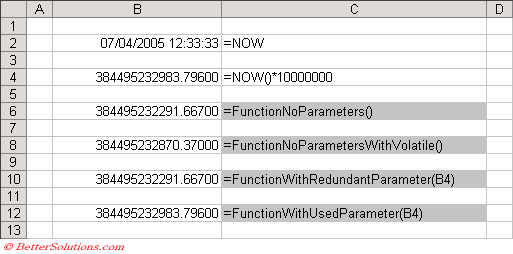
We have written four simple custom worksheet functions to illustrate the differences.
Public Function FunctionNoParameters() As String
   FunctionNoParameters = CStr(Format(Now() * 10000000, "0.00000"))
End Function

Public Function FunctionNoParametersWithVolatile() As String
   Call Application.Volatile(True)
   FunctionNoParametersWithVolatile = CStr(Format(Now() * 10000000, "0.00000"))
End Function

Public Function FunctionWithRedundantParameter(ByVal rgeRange As Range) As String
   FunctionWithRedundantParameter = CStr(Format(Now() * 10000000, "0.00000"))
End Function

Public Function FunctionWithUsedParameter(ByVal rgeRange As Range) As String
   FunctionWithUsedParameter = CStr(Format(rgeRange.Value, "0.00000"))
End Function
Using the Functions
These custom functions are then referenced in the normal way from your worksheet.
 |
Pressing F9
Pressing F9 recalculates any cells that have changed in all the open workbooks.
This will only calculate formulas that have changed since the last calculation.
Only custom functions which contain the Application.Volatile statement or functions that have parameters which are referencing cells whose values change will be recalculated.
Any functions that use parameters to cell references must use the value in there calculation.
Pressing (Shift + F9)
Pressing (Shift + F9) is the same as pressing F9 except that it only recalculates cells on the active worksheet.
Only custom functions which contain the Application.Volatile statement or functions that have parameters which are referencing cells whose values change will be recalculated.
Any functions that use parameters to cell references must use the value in there calculation.
Pressing (Ctrl + Alt + F9)
Pressing (Ctrl + Alt + F9) recalculates all cells in all open workbooks regardless of whether they need to be recalculated.
This is often referred to as full calculation.
All custom functions will be recalculated regardless.
Pressing (Ctrl + Shift + F9)
Pressing (Ctrl + Shift + F9) does not seem to work in Excel 2003 or Excel 2002.
It is meant to recalculate all cells in the active workbook regardless of whether they need to be recalculated.
Pressing (Ctrl + Alt + Shift + F9)
Pressing (Ctrl + Alt + Shift + F9) recalculates all cells in all open workbooks regardless of whether they need to be recalculated.
This is often referred to a full calculation with dependency tree rebuild.
This includes all custom worksheet functions and external worksheet functions using a DDE.
Remember
Pressing (Ctrl + Shift + F9) does not seem to work in Excel 2002 or Excel 2003.
Remember that the settings on the (Tools > Options)(Calculation tab) are workbook specific but it is the first workbook that is opened that determines what the settings are. Opening subsequent workbooks will not change the options.
This text can be inserted into the object browser with the pop-up menu command Properties
The command opens a dialog box in which you can also set a reference to a help file.
Registered a function
Application.MacroOptions Macro:="functionname", Description:="hdhdhs", Category=6
unregisters a function
Application.MacroOptions Macro:="functionname", Description:=empty, Category=empty
SpecialCells and CurrentRegion
These methods cannot be used inside user defined functions.
Instead you will have to recreate these functions using loops
Is it possible to add help to the function arguments ?
objRange = Application.Caller
objRange.Parent.Parent.Name
AppName = Range.Parent.Parent.Parent.Name
Application.Caller
Defining the Category
You must execute some VBA code when the workbook (or add-in) that contains the function is opened.
Returning Arrays
This example will accept a cell range and return an array of values plus 10
Public Function ReturnArray(ByVal oRange As Range) As Variant
Dim myarray As Variant
Dim irow As Integer
   myarray = oRange.Value
   For irowno = 1 To Ubound(myarray,1)
      myArray(irowno,1) = myarray(irowno,1) + 10
   Next irowno
   ReturnArray = myarray
End Function
Excel > Cells & Ranges > VBA Code > Working with Arrays
Custom functions can also be used to significantly shorten your formulas. However custom functions are often much slower to calculate than the built-in functions.
Include screen shots for example
When your custom worksheet function is re-calculated it behaves just like an Excel worksheet function and is only re-calculated when any of its arguments are modified.
Include a log file example as well
Passing in Arrays
You can use ParamArray refer to MEDIANIFS
You can also use user defined worksheet functions in your regular VBA code.
Returning an Valid Error
It is possible to have your custom function return error values
In order to be able to return an error value from a custom function the datatype returned by the function must be Variant.
There will also be a slight performance loss by returning a Variant but returning a sensible error value might outweigh this.
Public Function BET_Error() As Variant
   BET_Error = VBA.CVErr(xlCVError.xlErrValue)
End Function
If you try and return an error value from a function that does not return a Variant the function will return #VALUE.
# DIV/0!
VBA.CVErr(xlCVError.xlErrDiv0) 'Error Number 2007
# N/A
VBA.CVErr(xlCVError.xlErrNA) 'Error Number 2042
# NAME ?
VBA.CVErr(xlCVError.xlErrName) 'Error Number 2029
# NULL!
VBA.CVErr(xlCVError.xlErrNull) 'Error Number 2000
# NUM
VBA.CVErr(xlCVError.xlErrNum) 'Error Number 2036
# REF!
VBA.CVErr(xlCVError.xlErrRef) 'Error Number 2023
# VALUE!
VBA.CVErr(xlCVError.xlErrValue) 'Error Number 2015
Arguments
Prior to Excel 2010 there was no easy way to add argument descriptions to your user defined functions.
In Excel 2010 an additional argument was added to the Application.MacroOptions method.
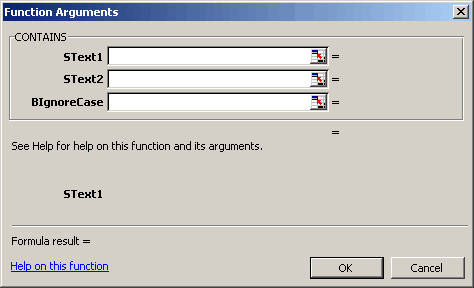 |
In this example are we are going to use the AVERAGETOP user defined function.
Just adding the code to a workbook will display the following dialog box, i.e. with no argument descriptions.
Excel 2010 and later
Public Function MyUserDefinedFunction(ByVal sText As String) As String
End Function

Public Sub DefineFunction
   Dim sFunctionName As String
   Dim sFunctionCategory As String
   Dim sFunctionDescription As String
   Dim aFunctionArguments(1 To 2) As String

   sFunctionName = "MyUserDefinedFunction"
   sFunctionDescription = "This is my new user defined function"
   sFunctionCategory = 7 ' Text category
   aFunctionArguments(1) = "String to contain the name"
   aFunctionArguments(2) = "Long to contain the value"

   Application.MacroOptions Macro:=sFunctionName, _
         Description:=sFunctionDescription, _
         Category:=sFunctionCategory, _
         ArgumentDescriptions:=aFunctionArguments
End Sub
Excel 2007 - Character Restriction
You can add argument descriptions by using the old XLM Register Function in conjunction with the ExecuteExcel4Macro VBA function but you are limited to a maximum of 255 characters.
This method is therefore no good when you have functions that contain more than a couple of arguments.
It is possible to overcome this restriction by using an ancient XLM macro sheet.
Excel 2007 - No Character Restriction
Laurent Longre discovered, that if one uses the Excel 4 macro language's register function to register a function residing within any system dll, using an alias name which is identical to the name of a UDF, one can assign the UDF to one's own category in the function wizard. At the same time, one can also add a function description and argument descriptions.
This method is based on a curious behaviour of XL97 : assume that an
open workbook contains a function called "Myfunc". If you try now to
register any DLL function (for instance, one of the Win95 API) with the
same name, here's what happens: when you use MyFunc() in a worksheet, it
works fine and returns the result of the VBA function. But if you call
it with the function wizard, it displays the informations of ... the
registered DLL function!
In other words, you can add a few lines in an Auto_open Sub which register some API functions with the same names as your VBA functions. REGISTER enables to assign the functions to any custom categories, and also to "document" each argument. When you call later one of the VBA custom function, these parameters passed to REGISTER will appear in the function wizard, including the custom category.
After further experimenting, I've noticed also that you must declare the VBA functions "Private" in order to remove them from the default "user-defined" category (otherwise, they would appear twice in the wizard). Of course, the VBA add-in must also provide an Auto_close Sub which unregisters the functions. To remove the added custom categories, I've found this way : first, unregister the functions, then register them with the MacroType argument set to 0 (= hidden function), and finally unregister them one more time.
This method is just a funny work-around. I don't know if it works without any restriction (I've just achieved a few tests), and it requires that you add some Auto_open and Auto_close code in the add-in workbook.
the REGISTER function allows one to "register" a function from a library such as USER32.dll with an alias name (perhaps originally intended to allow a more user-friendly name), assign the library function to a function category for Excel's Paste Function list palette, and also provide brief descriptions of the arguments for the library function that will appear in Excel's Paste Function formula palette. However, if the alias name (e.g. Multiply2) chosen for the library function (e.g. CharNextA) happens to be also the name of an UDF available in the workbook, then the UDF will be used in place of the library function when the function name/alias is called up.
Indicates that the same library function can be used in "registering" each UDF; I never tried this; please let me know if it really works. As I understand the method, each UDF has to be "registered over" a different function from the library. The library function that is "registered over" with a user-defined-function (UDF), is not available once the UDF is treated by this method but there are a lot of obscure functions in these libraries that are very seldomly used. All of the functions in the library (e.g. USER32.dll) can be quickly seen by opening the dll file in notepad and scrolling down to where identifiable words show up. A few of the functions in USER32.dll are: ActivateKeyboardLayout AdjustWindowRect AdjustWindowRectEx ... BeginDeferWindowPos BeginPaint ... CallMsgFilter CallMsgFilterA ... CharLowerA CharLowerBuffA CharLowerBuffW CharLowerW CharNextA CharNextExA CharNextW CharPrevA CharPrevExA CharPrevW CharToOemA CharToOemBuffA CharToOemBuffW CharToOemW CharUpperA CharUpperBuffA CharUpperBuffW CharUpperW ... DdeAbandonTransaction DdeAccessData ... etc.
However, I won't advocate which library functions you should register over.
Const Lib = """USER32"""
Option Base 1

Private Function Divide(ByVal N1 As Double, _
                        ByVal N2 As Double) As Double
   Divide = N1 / N2
End Function

Private Function Multiply2(ByVal N1 As Double, _
                           ByVal N2 As Double) As Double
   Multiply2 = N1 * N2
End Function

Private Function Multiply3(ByVal N1 As Double, _
                           ByVal N2 As Double, _
                           ByVal N3 As Double) As Double
   Multiply3 = N1 * N2 * N3
End Function

Private Sub Auto_Open()
   Call Register("DIVIDE", _
                3, _
                "Numerator,Divisor", _
                1, _
                "My Functions1", _
                "Divides two numbers", _
                """Numerator"",""Divisor""", _
                CharNextA)

   Call Register("MULTIPLY2", _
                3, _
                "Number1,Number2", _
                1, _
               "My Functions1", _
               "Multiplies two numbers", _
               """First number"",""Second number""", _
               "CharNextA")

   Call Register("MULTIPLY3", _
                4, _
               "Number1,Number2,Number3", _
                1, _
                "My Functions2", _
                "Multiplies three numbers", _
                """First number"",""Second number"",""Third number""", _
                "CharNextA")

End Sub

Private Sub Register(ByVal sFunctionName As String, _
                     ByVal iNoOfArguments As Integer, _
                     ByVal Args As String, _
                     ByVal MacroType As Integer, _
                     ByVal Category As String, _
                     ByVal Descr As String, _
                     ByVal DescrArgs As String, _
                     ByVal FLib As String)

 Application.ExecuteExcel4Macro "REGISTER(" & Lib & ",""" & FLib & """,""" & String(NbArgs, "P") & _
             """,""" & FunctionName & """,""" & Args & """," & _
       MacroType & ",""" & Category & """,,,""" & Descr & """," & DescrArgs & ")"

End Sub

Sub Auto_Close()

 Dim FName
 Dim i As Integer
 FName = Array("DIVIDE", "MULTIPLY2", "MULTIPLY3")
 For i = 1 To 3
   With Application
     .ExecuteExcel4Macro "UNREGISTER(" & FName(i) & ")"
     .ExecuteExcel4Macro "REGISTER(" & Lib & ",""CharNextA"",""P"",""" & FName(i) & """,,0)"
     .ExecuteExcel4Macro "UNREGISTER(" & FName(i) & ")"
   End With
 Next

End Sub
Unfortunately, if you load files which introduce new categories, the category index numbers depend on the order of loading. If you can't predict this, you can't be sure what category the function will fall into. I know of no good solution to this,
Descriptions
There are at least 2 ways you can use to add a description to you user defined functions.
One is relatively well known, while the other is a simple but little known method. Lets use the better known method first.
Using (Insert > Function) Dialog Box
When you select a function in the (Insert > Function) dialog box a brief description appears at the bottom telling you what the function does.
In the case of the SUM() function it adds all the numbers in a range of cells.
Press (Tools > Macro > Macros) to display the "Macros" dialog box.
This dialog box only displays procedures and not functions although it is possible to assign a description to a function.
Type the exact name of the function. If the name is valid then the "Options" button should be enabled.
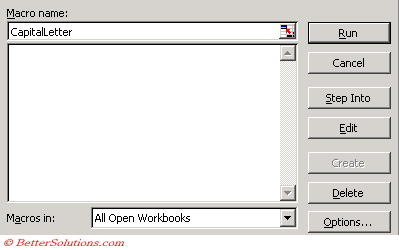 |
If the Options button is greyed out then your function name cannot be recognised. It is not case sensitive.
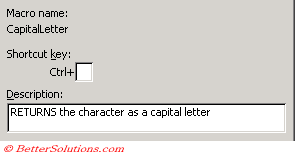
You can then add your description in the same way you do for a procedure. The shortcut key is clearly redundant in this case.
 |
Using VBA Code
The following line defines the descriptions for a function called CapitalLetter.
Application.MacroOptions Macro:="CapitalLetter", _
                             Description:="RETURNS the character as a capital letter"
Using Object Browser
Open up the VBE (Alt+F11) and select anywhere within your Function code.
Now Push F2 to open the "Object Browser".
At the top of the Object Browser there are 2 drop down boxes. Click the top one and select "VBAProject".
You should now have all Modules and global Objects showing in the "Classes" box situated at the bottom of the Object Browser.
Click on the name of the Module that houses your UDF.
In the "Members of..." box to the right you should see the names of all Functions and Procedures within the selected Module.
Simply right click on the name of your UDF and select "Properties".
SS
Type a description for your UDF, then click Ok and then Save.
You must save and close for the changes to be made
Reopening the workbook will show you the new description
SS
Categories
By default any user defined functions will be added to the User Defined category in the (Insert > Functions) dialog box.
It is possible to create a new category to store your functions but it involves using an Excel 4.0 Macro.
There is no direct way to add a function to a function category when it is created.
By default they will all be added to the User Defined category.
The table below lists the category names with their corresponding numbers.
| 0 | All (no specific category) | 10 | Commands (normally hidden but visible if you add a function to this category) |
| 1 | Financial | 11 | Customizing (normally hidden but visible if you add a function to this category) |
| 2 | Date & Time | 12 | Macro Control (normally hidden but visible if you add a function to this category) |
| 3 | Maths & Trigonometry | 13 | DDE / External (normally hidden but visible if you add a function to this category) |
| 4 | Statistical | 14 | User Defined (default) |
| 5 | Lookup & Reference | 15 | Engineering |
| 6 | Database | 16 | Cube |
| 7 | Text | 17 | First custom category |
| 8 | Logical | 18 | Second custom category |
| 9 | Information |
You can define the category for your functions when the workbook or add-in is opened.
Private Workbook_Open()
   Application.MacroOptions macro:="Macro Name", Category:=2
End Sub
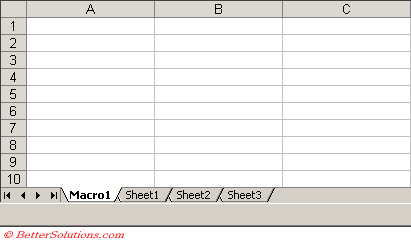
Insert an Excel 4.0 Macro worksheet
Right click a worksheet and select the Insert button.
Select "MS Excel 4.0 Macro" and click OK.
This will insert a new Excel 4.0 Macro worksheet into your workbook (or add-in).
 |
Add the new Function Category
Select (Insert > Name > Define) and in the bottom right click "Function".
Type the name of your category in the "Names in workbook" box.
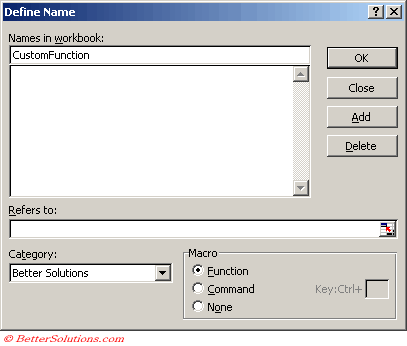 |
The new category will be added to the list in the (Insert > Functions) dialog box.
Once you have added at least one function to this new category you can actually delete the Macro 4.0 worksheet.
You will not be able to add any more functions to the category once the Macro 4.0 worksheet has been deleted.
More Functions
Can be useful in user-defined function to identify which range / worksheet etc called the function
Public Function QUADRATIC(sngValueA As Single, _
                          sngValueB As Single, _
                          sngValueC As Single) As Variant

Dim vReturnArray() As String
Dim sngDeterminant As Single
Dim sngreal As Single
Dim sngimaginary As Single

   Call Application.Volatile(True)
   ReDim vReturnArray(2)

   If sngValueA = 0 Then Call MsgBox("The value of A cannot be 0")
   If sngValueA = 0 Then Exit Function

   sngDeterminant = (sngValueB * sngValueB) - (4 * sngValueA * sngValueC)

   Select Case sngDeterminant

      Case Is < 0
         vReturnArray(0) = "Two Complex"

         sngreal = -sngValueB / (2 * sngValueA)
         sngimaginary = VBA.Sqr(-sngDeterminant) / (2 * sngValueA)

         If sngreal <> 0 Then vReturnArray(1) = VBA.Round(sngreal, 2)
         If sngreal <> 0 Then vReturnArray(2) = VBA.Round(sngreal, 2)

         If sngreal <> 0 And sngimaginary <> 0 Then
            vReturnArray(1) = vReturnArray(1) & "+"
            vReturnArray(2) = vReturnArray(2) & "-"
         End If
         If sngimaginary <> 0 Then
            vReturnArray(1) = vReturnArray(1) & VBA.Round(sngimaginary, 2) & "i"
            vReturnArray(2) = vReturnArray(2) & -VBA.Round(sngimaginary, 2) & "i"
         End If

      Case Is = 0
         vReturnArray(0) = "One Real"
         vReturnArray(1) = -sngValueB / (2 * sngValueA)
         vReturnArray(1) = VBA.Round(vReturnArray(1), 3)

         vReturnArray(2) = "-"

      Case Is > 0
         vReturnArray(0) = "Two Real"
         vReturnArray(1) = (-sngValueB + VBA.Sqr(sngDeterminant)) / (2 * sngValueA)
         vReturnArray(1) = VBA.Round(vReturnArray(1), 3)

         vReturnArray(2) = (-sngValueB - VBA.Sqr(sngDeterminant)) / (2 * sngValueA)
         vReturnArray(2) = VBA.Round(vReturnArray(2), 3)

   End Select

   QUADRATIC = vReturnArray
End Function
Function DegreesCToF(ByVal sngCentigrade As Single) As Single
   DegreesCToF =  sngCentigrade * 9 / 5 + 32
End Function
Function DegreesFToC(ByVal sngFarenheit As Single) As Single
   DegreesFToC =
End Function
Function NAMEREVERSE(strValue As String)
   strLen = Len(strValue)
   strNumSpace = InStrRev(strValue, " ")
   strSurname = Right(strValue, strLen - strNumSpace)
   strRest = Left(strValue, strNumSpace - 1)
   NAMEREVERSE = strSurname & ", " & strRest
End Function
Function CircleArea(radius as Double) As Double
    CircleArea = (radius^2) * Application.Pi
End Function
Function ExtractElement(Txt, n, Separator) As String
   Returns the nth element of a text string, where the elements
'    are separated by a specified separator character

    Dim Txt1 As String, temperament As String
    Dim ElementCount As Integer, i As Integer

    Txt1 = Txt
'   If space separator, remove excess spaces
    If Separator = Chr(32) Then Txt1 = Application.Trim(Txt1)

'   Add a separator to the end of the string
    If Right(Txt1, Len(Txt1)) <> Separator Then _
        Txt1 = Txt1 & Separator

'   Initialize
    ElementCount = 0
    TempElement = ""

'   Extract each element
    For i = 1 To Len(Txt1)
        If Mid(Txt1, i, 1) = Separator Then
            ElementCount = ElementCount + 1
            If ElementCount = n Then
'               Found it, so exit
                ExtractElement = TempElement
                Exit Function
            Else
                TempElement = ""
            End If
        Else
            TempElement = TempElement & Mid(Txt1, i, 1)
        End If
    Next i
    ExtractElement = ""
End Function
Function STATFUNCTION(rng, op)
    Select Case UCase(op)
        Case "SUM"
            STATFUNCTION = WorksheetFunction.Sum(rng)
        Case "AVERAGE"
            STATFUNCTION = WorksheetFunction.Average(rng)
        Case "MEDIAN"
            STATFUNCTION = WorksheetFunction.Median(rng)
        Case "MODE"
            STATFUNCTION = WorksheetFunction.Mode(rng)
        Case "COUNT"
            STATFUNCTION = WorksheetFunction.Count(rng)
        Case "MAX"
            STATFUNCTION = WorksheetFunction.Max(rng)
        Case "MIN"
            STATFUNCTION = WorksheetFunction.Min(rng)
        Case "VAR"
            STATFUNCTION = WorksheetFunction.Var(rng)
        Case "STDEV"
            STATFUNCTION = WorksheetFunction.StDev(rng)
        Case Else
            STATFUNCTION = CVErr(xlErrNA)
    End Select
End Function
Function SHEETOFFSET1(offset, Ref)
'   Returns cell contents at Ref, in sheet offset
    Application.Volatile
    SHEETOFFSET1 = Sheets(Application.Caller.Parent.Index _
      + offset).Range(Ref.Address)
End Function

Function SHEETOFFSET2(offset, Ref)
'   Returns cell contents at Ref, in sheet offset
    Dim WBook As Workbook
    Dim WksCount As Integer, i As Integer
    Dim CallerSheet As String, CallerIndex As Integer
    Application.Volatile

'   Create an array consisting only of Worksheets
    Set WBook = Application.Caller.Parent.Parent
    Dim Wks() As Worksheet
    WksCount = 0
    For i = 1 To WBook.Sheets.Count
        If TypeName(WBook.Sheets(i)) = "Worksheet" Then
            WksCount = WksCount + 1
            ReDim Preserve Wks(1 To WksCount)
            Set Wks(WksCount) = WBook.Sheets(i)
        End If
    Next i

'   Determine the position of the calling sheet
    CallerSheet = Application.Caller.Parent.Name
    For i = 1 To UBound(Wks)
        If CallerSheet = Wks(i).Name Then CallerIndex = i
    Next i

'   Get the value
    SHEETOFFSET2 = Wks(CallerIndex + _
     offset).Range(Ref.Address)
End Function
Function GetText(cell As Range) As String
  ' Application.Volatile = True
   On Error Resume Next
   GetText = cell.Text
End Function
Function FontStyle(cell As Range) As String
    'Won't change value until some value on sheet changes
    Application.Volatile
    FontStyle = cell.Font.FontStyle
End Function
Function GetFormat(cell As Range) As String
  ' Application.Volatile = True
   On Error Resume Next
   GetFormat = ""
   GetFormat = cell.NumberFormat
End Function
Sub FormulaBox()
  Dim MsgBoxx As String
  Dim ix As Long
  Dim vGetFormulaI As String, xyx As String
  MsgBoxx = "First Character of " _
    & Selection.Item(ix).Address(0, 0) & " is """ _
    & Left(ActiveCell.Value, 1) & """   =CHR(" _
    & Right("0000" & Asc(ActiveCell.Value), 4) & ") or Hex=x'" _
    & Hex(Asc(ActiveCell.Value)) & "'" & Chr(10) _
    & "Last Character is """ & Right(ActiveCell.Value, 1) _
    & """  =CHR(" _
    & Right("0000" & Asc(Right(ActiveCell.Value, 1)), 4) & ") or Hex=x'" _
    & Hex(Asc(Right(ActiveCell.Value, 1))) & "'" & Chr(10) _
    & ActiveCell.Font.Name & " " & ActiveCell.Font.Size _
    & "  " & ActiveCell.Font.FontStyle _
    & ",  color: " & ActiveCell.Font.ColorIndex _
    & "  interior: " & ActiveCell.Interior.ColorIndex _
    & Chr(10) & Chr(10)

  For ix = 1 To Selection.Count
      'Selection.Item(ix).NoteText _ ...
      vGetFormulaI = ""
      If VarType(Selection.Item(ix)) = 8 Then
       vGetFormulaI = "'" & Selection.Item(ix).Formula
      Else
       vGetFormulaI = Selection.Item(ix).Formula
      End If
      If Selection.Item(ix).HasArray Then _
        vGetFormulaI = "{" & Selection.Item(ix).Formula & "}"

      'include below if VarType wanted -- don't include for distribution
      '   & " " & VarType(Selection.Item(ix)) _ ..
      MsgBoxx = MsgBoxx _
        & Selection.Item(ix).Address(0, 0) _
        & ": " & vGetFormulaI _
        & Chr(10) & "    " & Selection.Item(ix).NumberFormat & Chr(10)

  Next
  MsgBoxx = MsgBoxx & Chr(10) & "***" _
     & Chr(10) & _
     LCase(ActiveWorkbook.FullName) & "  " & ActiveSheet.Name
     'to verify you've  seen everything
  xyx = MsgBox(MsgBoxx, , _
    "FormulaBox: Formula & Format & Text for " _
    & Selection.Count & " selected cells")
  'Application.ScreenUpdating = True
End Sub
Sub FormulaSheet()
    Application.ScreenUpdating = False
    Application.Calculation = xlCalculationManual
    Dim irow As Long, cell As Range
    Dim oSheet As Worksheet, nSheet As Worksheet
    Dim oCells As Range
    irow = 1
    Set oSheet = ActiveSheet
    Set nSheet = ActiveWorkbook.Worksheets.Add
    nSheet.Name = oSheet.Name & " content at " _
         & Format(Now(), "hhmss")
    nSheet.Cells(1, 1) = "Cell"
    nSheet.Cells(1, 2) = "Text"
    nSheet.Cells(1, 3) = "Value"
    nSheet.Cells(1, 4) = "Formula"
    nSheet.Cells(1, 5) = "NumberFormat"

    For Each cell In oSheet.UsedRange
      If Not IsEmpty(cell) Then
        irow = irow + 1
        Cells(irow, 1).Value = cell.Address(0, 0)
        Cells(irow, 2).Value = "'" & cell.Text
        Cells(irow, 3).Value = cell.Value
        Cells(irow, 4).Value = "'" & cell.Formula
        Cells(irow, 5).Value = "'" & cell.NumberFormat
      End If
    Next cell
    Columns("A:F").EntireColumn.AutoFit
    Rows("1:1").Font.Bold = True
    Application.Calculation = xlCalculationAutomatic
    Application.ScreenUpdating = True
End Sub
Function UseFormula(cell)
    UseFormula = Application.Evaluate(cell.Formula)
    'If "'" <> Left(cell.formula, 1) Then UseFormula = "'" & cell.formula
End Function
Function UseFormula2(cell As Range) As String
    If Trim(cell.Value) = "" Then
       UseFormula2 = ""
       Exit Function
    ElseIf Left(cell.Value, 1) = "=" Then
       UseFormula2 = Application.Evaluate(cell.Formula)
       Exit Function
    Else
       UseFormula2 = "'#bad formula"
    End If
End Function
Function UseSameAs(cell As Range)
      Application.Volatile
      If cell.HasFormula Then
        UseSameAs = Application.Caller.Parent.Evaluate(cell.Formula)
      Else   '-- needed if constant looks like a cell address
        UseSameAs = cell.Value
      End If
End Function
Sub WhereAmI()
    MsgBox ActiveWorkbook.FullName & Chr(10) & _
      "Microsoft Excel is using " & Application.OperatingSystem
End Sub
Sub Euro_Format()
    Selection.NumberFormat = _
        "_(€* #,##0.00_);_(€* (#,##0.00);_(€* "" - ""???_);_(@_)"
End Sub
Function showAlign(cell As Range) As String
   Dim ca As String
   If Trim(Replace(cell.Text, Chr(160), "")) = "" Then
        ca = "N/A"
    ElseIf cell.HorizontalAlignment = -4138 Then
           ca = "Left"
    ElseIf cell.HorizontalAlignment = -4108 Then
       ca = "Center"
    ElseIf cell.HorizontalAlignment = -4131 Then
       ca = "Left"
    ElseIf cell.HorizontalAlignment = -4152 Then
       ca = "Right"
    ElseIf IsNumeric(cell) Then
       ca = "Right"
    Else
       ca = "Left"
    End If  '-4138 left, -4108 center, -4152 right, HTML default left
    showAlign = ca
End Function
XLOOKUPINTERPOLATE
Returns an interpolated value if an exact match is not found.
Public Function XLOOKUPINTERPOLATE( _
         ByVal lookup_value As Double, _
         ByVal lookup_array As Range, _
         ByVal return_array As Range) _
         As Variant

Dim i As Long
Dim n As Long
Dim x1 As Double, x2 As Double
Dim y1 As Double, y2 As Double

    n = lookup_array.Count

    ' Ensure both ranges are the same size
    If n <> return_array.Count Then
        XLOOKUPINTERPOLATE = CVErr(xlErrRef)
        Exit Function
    End If

    ' Loop through lookup_array to find position
    For i = 1 To n
        If lookup_value = lookup_array.Cells(i).Value Then
            ' Exact match
            XLOOKUPINTERPOLATE = return_array.Cells(i).Value
            Exit Function
        End If

        If lookup_value < lookup_array.Cells(i).Value Then
            ' Interpolate between i-1 and i
            If i = 1 Then
                ' Below range ? return first value
                XLOOKUPINTERPOLATE = return_array.Cells(1).Value
                Exit Function
            End If

            x1 = lookup_array.Cells(i - 1).Value
            x2 = lookup_array.Cells(i).Value
            y1 = return_array.Cells(i - 1).Value
            y2 = return_array.Cells(i).Value

            ' Linear interpolation
            XLOOKUPINTERPOLATE = y1 + (lookup_value - x1) * (y2 - y1) / (x2 - x1)
            Exit Function
        End If
    Next i

    ' Above the highest value ? return last
    XLOOKUPINTERPOLATE = return_array.Cells(n).Value
End Function
Built-in SUM Equivalent
The built-in SUM function is extremely versatile.
The function must be able to handle all of the following types of arguments
a single cell reference
a literal value
a string that looks like a value
a missing argument
a logical value
an expression that uses another function
a range reference
Function MySum(ParamArray arglist() As Variant) As Variant
' Emulates Excel's SUM function

' Variable declarations
  Dim arg As Variant
  Dim TempRange As Range, cell As Range
  Dim ErrCode As String
  MySum = 0

' Process each argument
  For arg = 0 To UBound(arglist)
'   Skip missing arguments
    If Not IsMissing(arglist(arg)) Then
'       What type of argument is it?
        Select Case TypeName(arglist(arg))
            Case "Range"
'               Create temp range to handle full row or column ranges
                Set TempRange = Intersect(arglist(arg).Parent.UsedRange, arglist(arg))
                For Each cell In TempRange
                    If Application.IsErr(cell.Value) Then
                        ErrCode = CStr(cell.Value)
                        MySum = CVErr(Right(ErrCode, Len(ErrCode) - InStr(ErrCode, " ")))
                        Exit Function
                    End If
                    If cell.Value = True Or cell.Value = False Then
                        MySum = MySum + 0
                    Else
                        If IsNumeric(cell.Value) Then MySum = MySum + cell.Value
                    End If
                Next cell
            Case "Null"  'ignore it
            Case "Error" 'return the error
                MySum = arglist(arg)
                Exit Function
            Case Else
'               Check for literal TRUE and compensate
                 If arglist(arg) = "True" Then MySum = MySum + 2
                 MySum = MySum + arglist(arg)
        End Select
    End If
  Next arg
End Function
© 2026 Better Solutions Limited. All Rights Reserved. © 2026 Better Solutions Limited TopPrevNext